For purchase orders that you pay on a monthly basis, you have the option to flag them as "Recurring." This allows you to easily find them when adding them to batches from month to month.
Some districts ask us how to handle the entry of totals on recurring purchase orders and how they will be handled by the Receiving module. Here are some ideas:
- There are two ways you can handle the entry of the line items on recurring POs -
- You can enter one line per month, so you would have 12 line items. For example - you estimate the annual cost of your electric bill. Divide that by 12 and enter the amount on each month line. This is the best way to handle it if you plan to continue to use the receiving module for the recurring POs. At the end of the year, you can cancel the remaining balance.
- With receiving for these you may want to have someone mark that month as received when the invoice is received. Then the Accounts Payable department can easily see that month is ready to pay.
- You can start the purchase order with the first month's invoice. Then, each month when you receive a new invoice, you can use the Adjust Balance button on the PO to increase it by the amount of the new invoice. This puts the PO into a Partially Paid status so you can pay it. You may not want to use the receiving module in this example.
- You can enter one line per month, so you would have 12 line items. For example - you estimate the annual cost of your electric bill. Divide that by 12 and enter the amount on each month line. This is the best way to handle it if you plan to continue to use the receiving module for the recurring POs. At the end of the year, you can cancel the remaining balance.
- If you don't want the recurring POs to be included in the Receiving Module at all, you can exclude these POs from the receiving module by unchecking the TR checkbox on all line items.

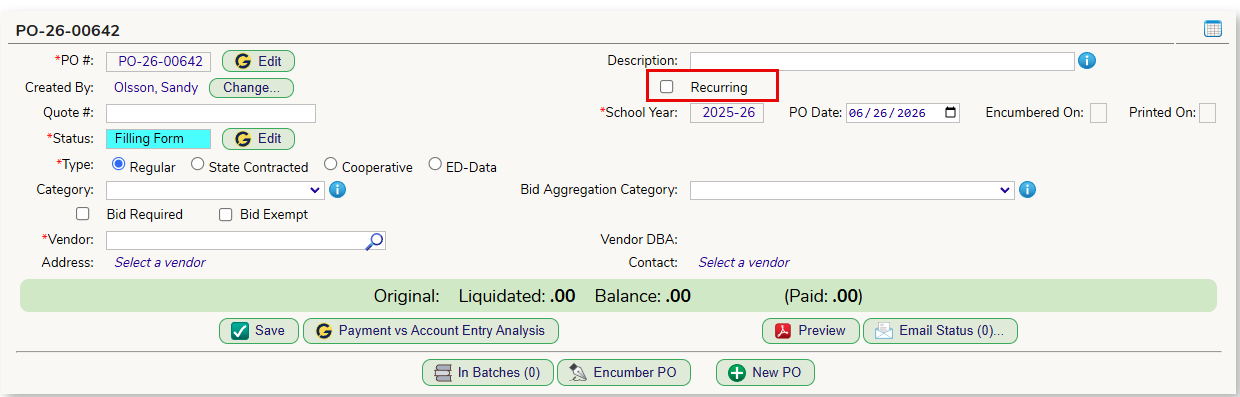
To flag a purchase order as Recurring, when entering a purchase order check off the "Recurring" checkbox. This flags the PO so it will appear in recurring PO searches.
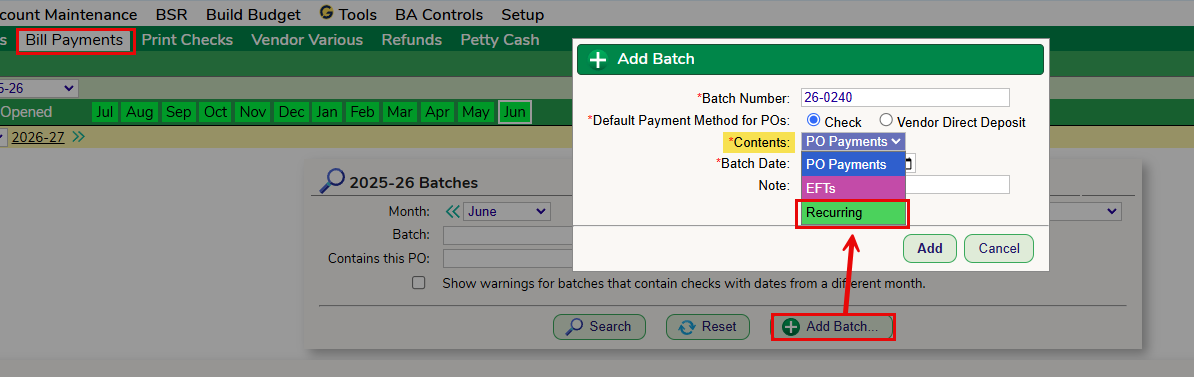
You have the option to enter recurring POs into their own payment batch. A new Contents type has been added called "Recurring." This has no functionality other than being able to search for batches with this type.
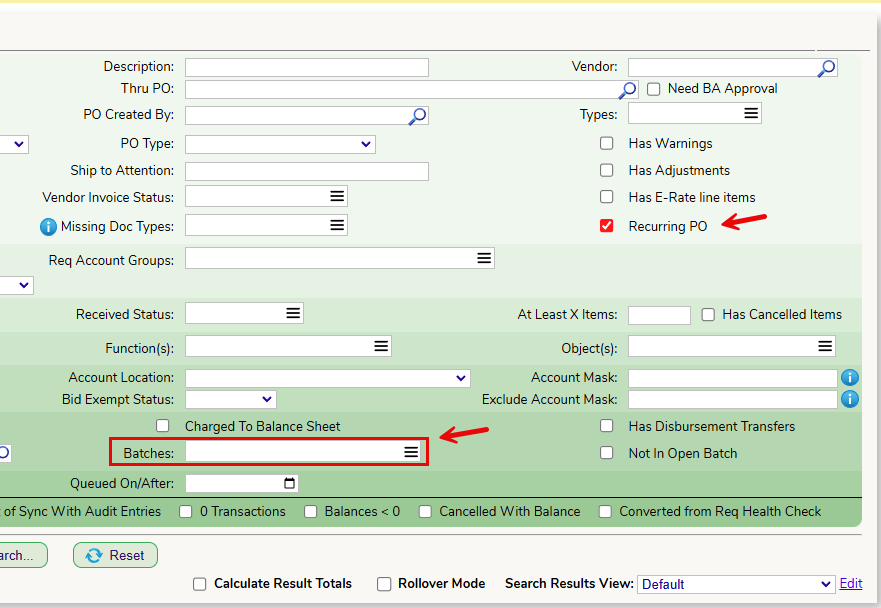
Using these flags allows you to easily pay recurring POs from month to month.
For example - you have a batch of recurring POs from September that has been fully paid.
- Make a new recurring batch in October.
- Use the "Batches" search option to find the September batch and Search.
- Check off each PO from your September batch search results you want to add to the October batch and add them to the October batch using the Add to Batch button.
The "Recurring" checkbox can be used if you want to search for ALL your POs flagged as recurring.
Was this article helpful?
That’s Great!
Thank you for your feedback
Sorry! We couldn't be helpful
Thank you for your feedback
Feedback sent
We appreciate your effort and will try to fix the article