You can create a Simple Custom Excel Report utilizing a single expression in conjunction with a Search Result View and the built-in search parameters on the Personnel search screen. You will always have the option to save your Simple Custom Excel report by utilizing the Named Search button.
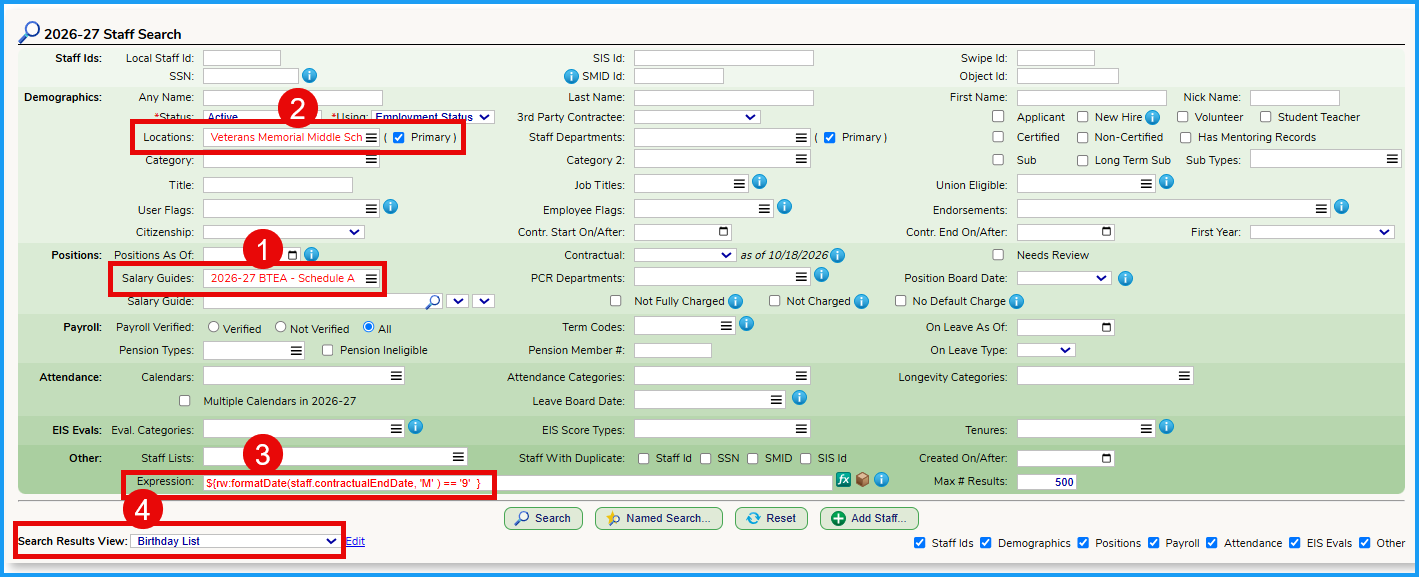
For example if you want a quick custom excel report that lists the birth dates for all teachers, in a specific school, whose birthday is in the month of September, you could utilize the following parameters:
- Select the teachers salary guide
- Select the School Location
- Enter in the Expression
- Select (or create) the Search Result View
Here are some common expressions that Districts utilize in their Simple Custom Excel Reports:
| #4 or the Expression | |
Search for a date range by date: (from 9/1/2026 through 9/30/2026) | ${rw:formatDate(staff.contractualEndDate, 'M/d/yyyy') >= '9/01/2026' and rw:formatDate(staff.contractualEndDate, 'M/d/yyyy') <= '9/30/2026' } |
Search for a date range by month: (The month of September) | ${rw:formatDate(staff.contractualEndDate, 'M' ) == '9' } |
| To find staff who have data missing from a specific field (i.e. missing SSN) | ${empty staff.ssn} after selecting the expression, key in the word empty and a space. The search result will show anyone whose SSN is blank |
Was this article helpful?
That’s Great!
Thank you for your feedback
Sorry! We couldn't be helpful
Thank you for your feedback
Feedback sent
We appreciate your effort and will try to fix the article