The Payroll→W2→EFW2 File→EFW2 File screen is where the Staff W2 Records are created.
These records are created by analyzing all of the payroll records for the year. These records can easily be exported (Run the W2 Report link) if external analysis needs to be done.
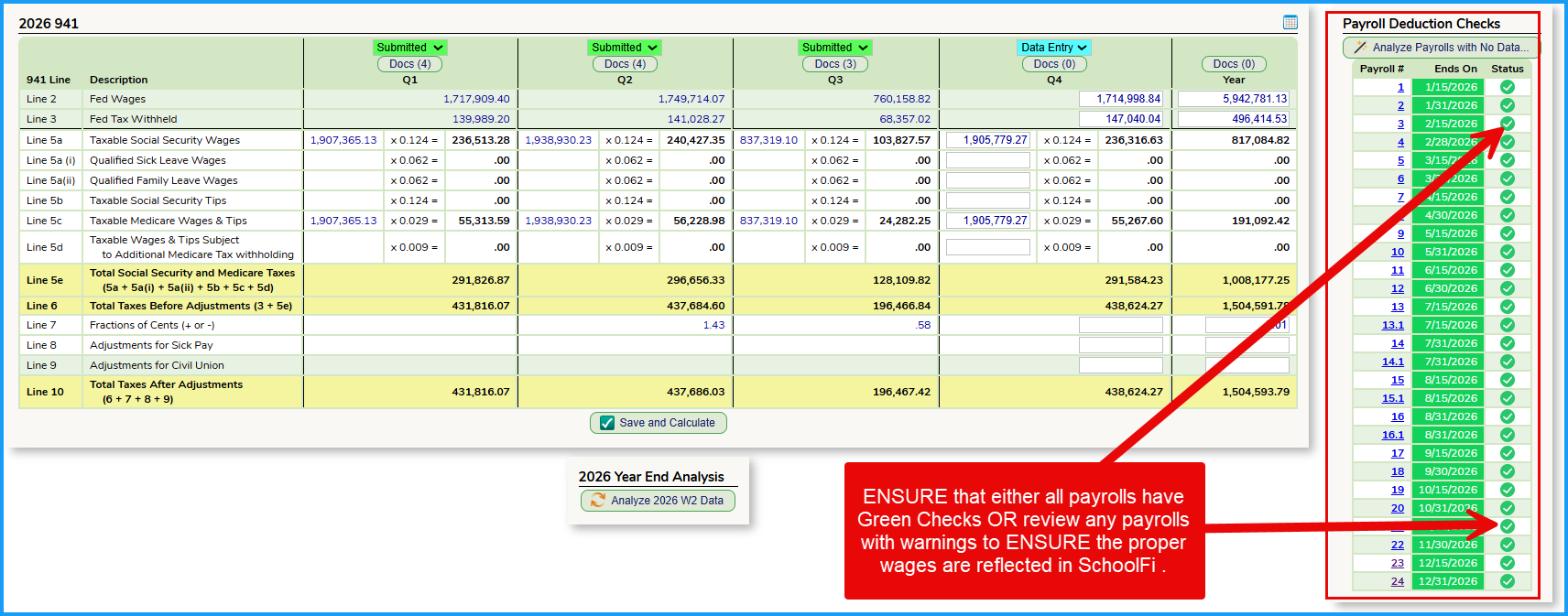
BEFORE you create the records, we STRONGLY recommend you review the 941-W2 Reconciliation Screen and pay particular attention to the Payroll Deduction Checks as illustrated below.
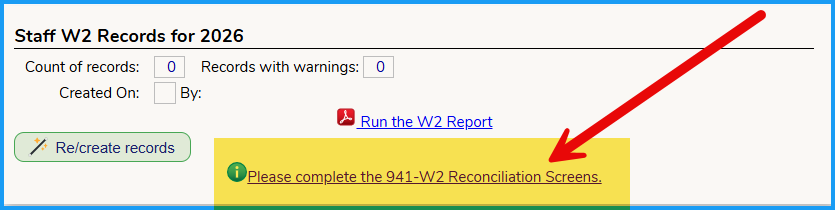
- Click the Re/create records button to generate the W2 forms for all employees.
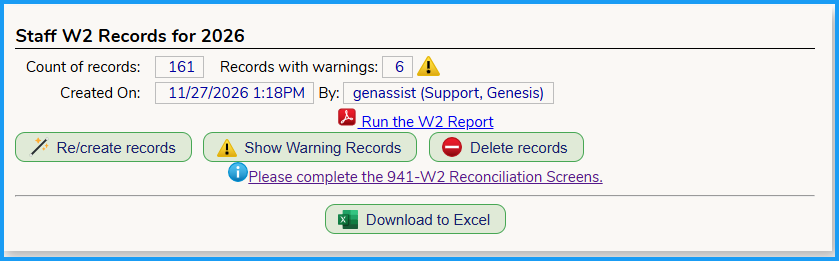
- The Download as Excel button quickly gets the data into Excel for further analysis.
- After the records are created, you can use the Re/create records or Delete records buttons as often as needed until the forms are accurate and ready to process.
- If there are warnings, you can click on the Show Warning Records button to find the warning and correct it. See more information below.
The Payroll→W2→EFW2 File→EFW2 File Warnings screen shows common problems with the data that need to be fixed before submitting this file to the IRS / State.
For this example, here are the warnings:
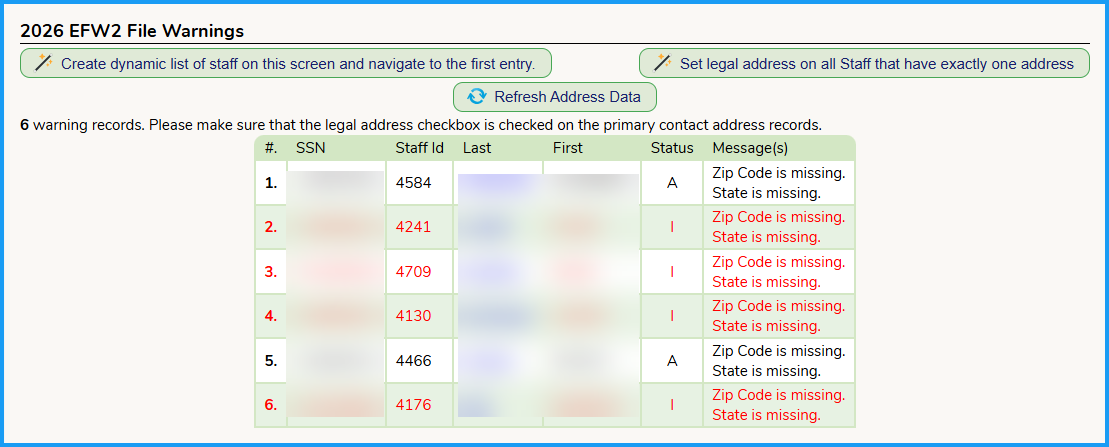
NOTE: Since addresses are a popular warning that appears for districts, here is the recommended procedure to review and proof addresses:
- You can use the Personnel > Staff > Search Contact and Address screen to review addresses as well. Choose the Address radio button and all your staff will appear. You can also see if anyone is missing a check mark for Legal Address, then go to their Contact record and check off the Legal Address box. As you fix the issues for each staff member they are automatically removed from the list.
This screen lists all staff members with issues that will cause errors on the W2.

These issues should be fixed, and the Staff W2 records recreated until no warnings remains before reconciling the W2s to the respective quarterly tabs or generating the EFW2 export file.
Reconciling the W2s to the 941 and/or 927 quarterly tabs:
Navigate to the 941 and/or 926 quarterly tab and click on the Analyze 2026 W2 Data button:
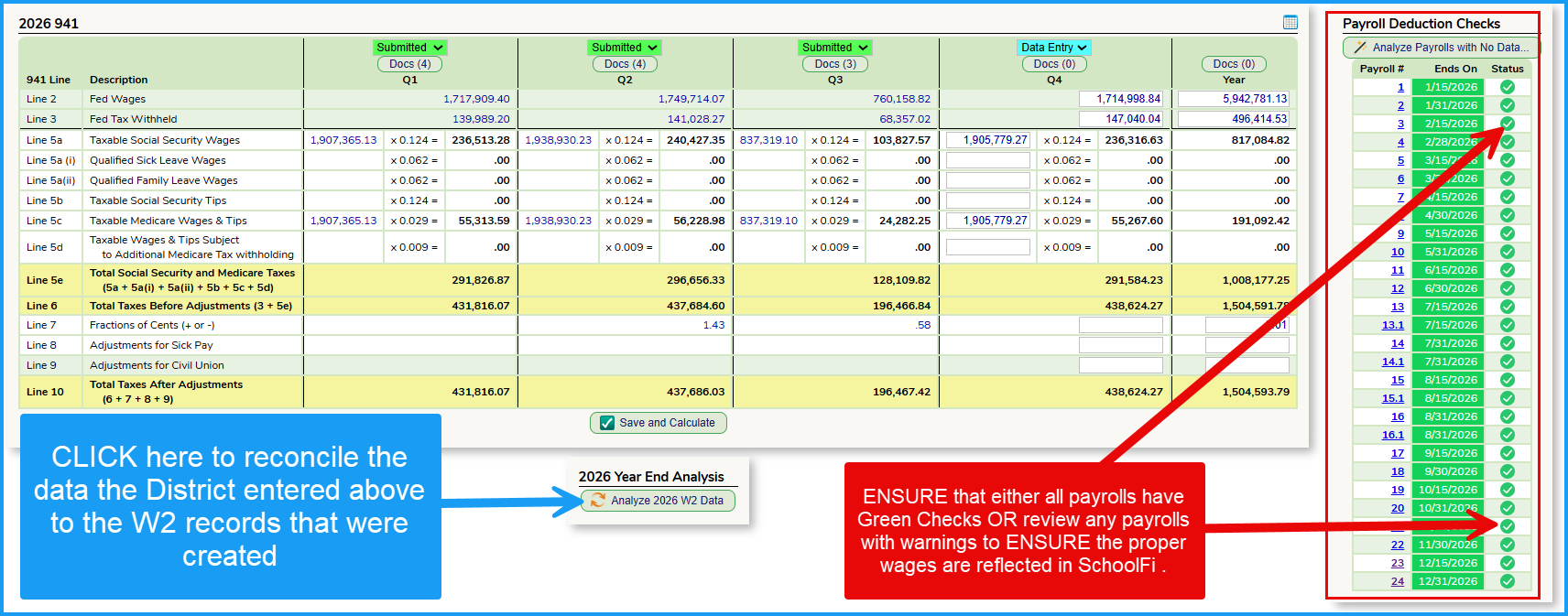
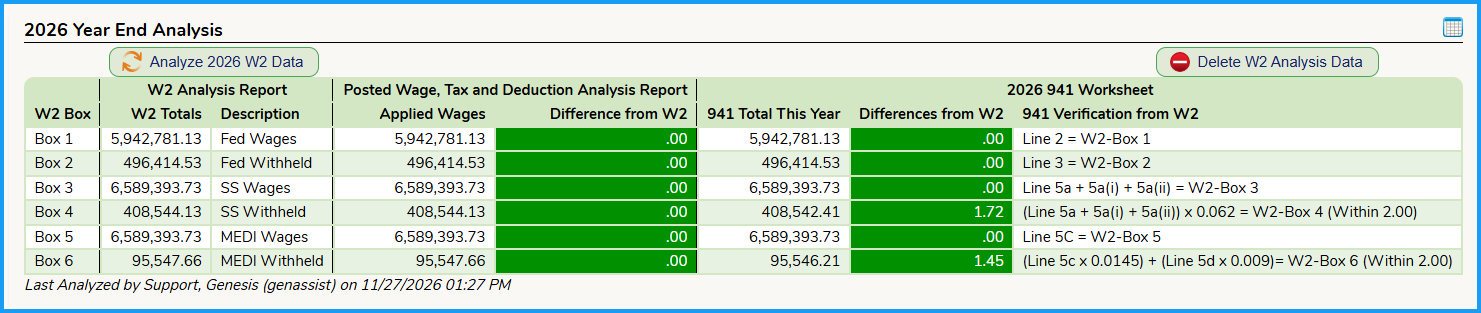
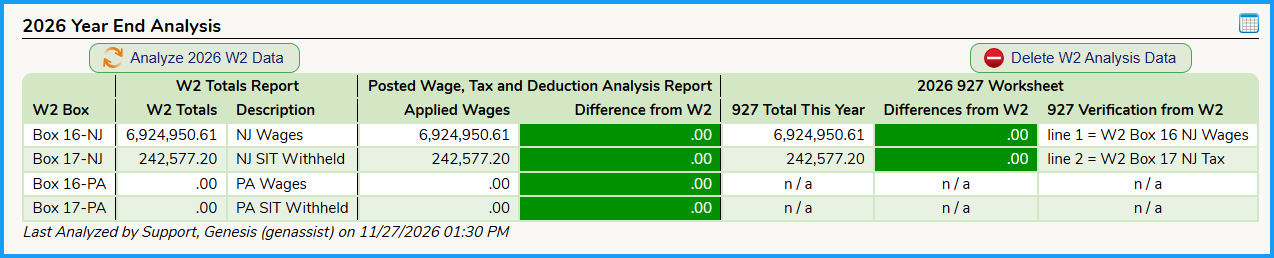
The following analysis will appear and the System will reconcile the amounts that the District entered on the tab (which MUST match the 4 quarterly reports the District submitted to the respective reporting agency) to the W2 file that was created.
If you so not have "all green" rows, you should review the data for the year and make any necessary adjustments. If you are processing adjustments, you can Delete the W2 Analysis Data and recreate the reconciliation and your modifications will be reflected in the updated analysis.
941 reconciliation:
927 reconciliation:
Was this article helpful?
That’s Great!
Thank you for your feedback
Sorry! We couldn't be helpful
Thank you for your feedback
Feedback sent
We appreciate your effort and will try to fix the article