Description:
This is a step-by-step guide to installing and configuring an SFTP server on Windows Server 2022, Windows Server 2019, and Windows 10 (Build 1809 and later).
Prerequisite:
- Static IP address
- Allow inbound connections for SFTP in the Windows Defender firewall
- Run the following PowerShell command as the Administrator:
- New-NetFirewallRule -Name sshd -DisplayName 'OpenSSH SSH Server' -Enabled True -Direction Inbound -Protocol TCP -Action Allow -LocalPort 22 -Program " C:\Windows\System32\OpenSSH\sshd.exe"
- The path of program can be different depending on where the OpenSSH was installed.
- You can create the Firewall rule manually as well in Windows Defender Firewall with Advanced settings.
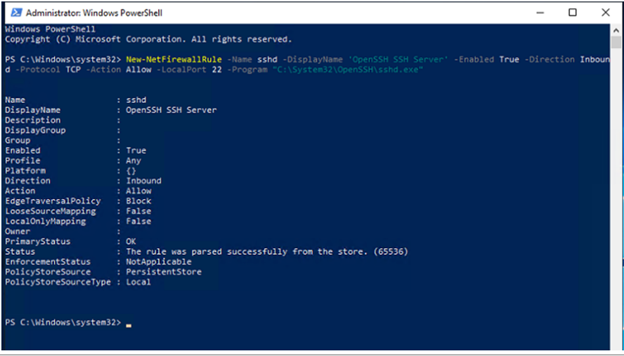 Now it is possible to install an SFTP server right from the Apps and Features section with windows server 2019
The following are the steps to enable SFTP on a Windows server 2019:
- Go to Windows Settings–>Apps
- Click on “Manage optional features” Under apps and features menu
- Look for OpenSSH Server, check if it’s already installed, if not click on “Add a feature” to install it
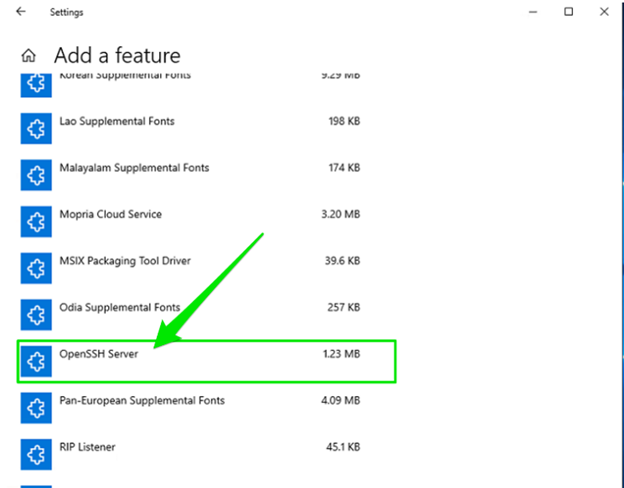
Configuring OpenSSH server to start on Windows startup:
- Go to Windows services and look for “OpenSSH Authentication Agent” and “OpenSSH SSH Server” services.
- Change both services' startup types to “Automatic”, and make sure that they are both started.
Changing the root directory of the OpenSSH server:
- Browse to directory “C:\ProgramData\ssh” and locate “sshd_config” file.
- Look for #ChrootDirectory and modify that line to:
ChrootDirectory “E:\SFTPRoot” and save the file. You can change it to any Path you would like, but ChrootDirectory will lock the sftp user to that path.
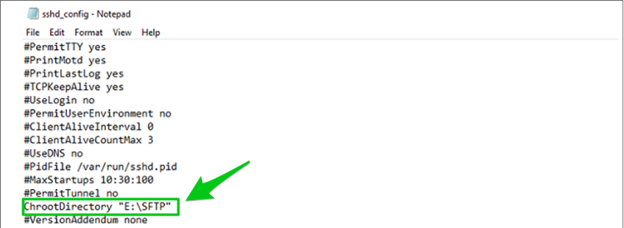 Restart the “OpenSSH SSH Server” service.
More advanced settings can create specific locations for Groups and Users.
Create a local user on the Windows server 2019 or an active directory user if the server is joined to the domain.
Test the connection to the local user via Filezilla or any other SFTP Client.
Key Authentication (Recommended):
- Configure SSH Server to accept only Public Key Authentication:
- Open configuration file sshd-config located in C:\ProgramData\ssh in Notepad. Change PasswordAuthentication yes to PasswordAuthentication no.
- Create Key pairs:
In PowerShell, enter the command ssh-keygen, and you will get new key pairs in folder X:\Users\<user>\.ssh.
- Example is RSA keys, so you must change your steps according to which keys you are using.
- Create new text file authorized_keys.txt in X:\Users\<user>\.ssh. Copy content of id_rsa.pub into that file. Rename authorized_keys.txt to authorized_keys.
- The id_rsa file is your private key. It would be best to secure it because that is an all-pass access key to your SSH-enabled machine.
- That is it. You can connect to your machine with SSH Client and SFTP Client using your id_rsa private key.
Security Restrictions (Recommended):
- Configure SSH server user to restrict from moving to different folders and disable SSH connection
- Open configuration file sshd-config located in C:\ProgramData\ssh in Notepad. Add the following information at the bottom of the file in user settings:
Match User sftpuser1
AllowTcpForwarding no
PermitTTY no
AllowAgentForwarding no
X11Forwarding no
ForceCommand internal-sftp
ChrootDirectory E:\SFTP
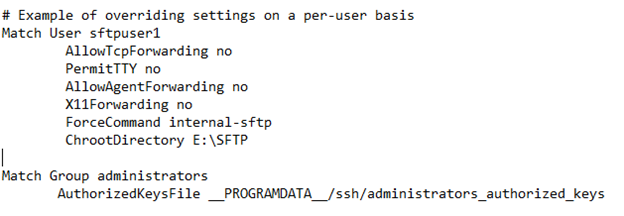
- ForceCommand internal-sftp will only allow sftp connection and ChrootDirectory will lock the user to a specific folder upon login.
- Once added, please restart the “OpenSSH SSH Server” service.
Changing Default port 22 (Recommended):
- Changing the default port for SSH will be done in the configuration file sshd-config located in C:\ProgramData\ssh. Once the file is open in Notepad, you will change the location of #Port 22 to Port (desired port)
- Save the file and restart the “Open SSH SHH Server” service.
Set up Port Forwarding
If all has gone well, contact your network administrator.
Have him/her set up port forwarding for port <desired port> (or whichever port you chose before) to the local IP address of the machine hosting the SFTP server.
Test by using FileZilla to connect to the external IP address (can be found by going to http://www.whatismyip.com/) using the same user credentials and port number.
Was this article helpful?
That’s Great!
Thank you for your feedback
Sorry! We couldn't be helpful
Thank you for your feedback
Feedback sent
We appreciate your effort and will try to fix the article