This can ONLY be processed in the Employee Portal
To import your cart from School Specialty or WB Mason into SchoolFi to create requisitions, you will download your cart from School Specialty or WB Mason. Save the file on your computer.
Next, you will import that file into your SchoolFi Employee Portal. Follow the steps below.
1 - the permission to use this feature must be added to the Requisition Entry Employee Portal role.
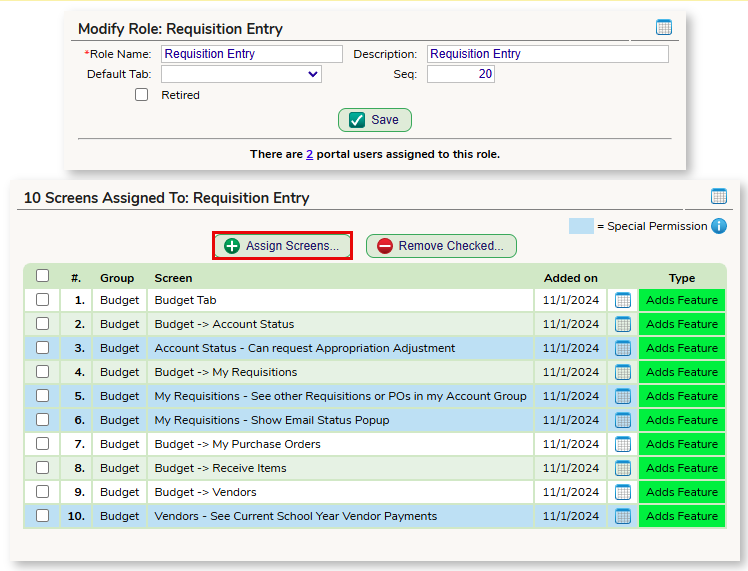
From the Setup > Employee Portal > Roles screen, click Edit on the Requisition Entry role. Click on the Assign Screens button.
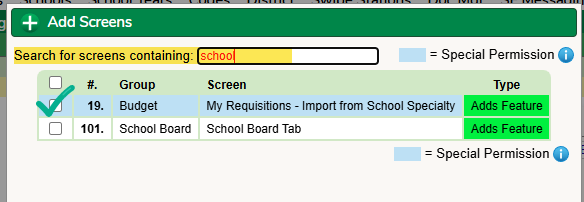
Next - search for the word "school" and check off the row for "My Requisitions - Import from School Specialty" and click Add. Do the same for WB Mason.
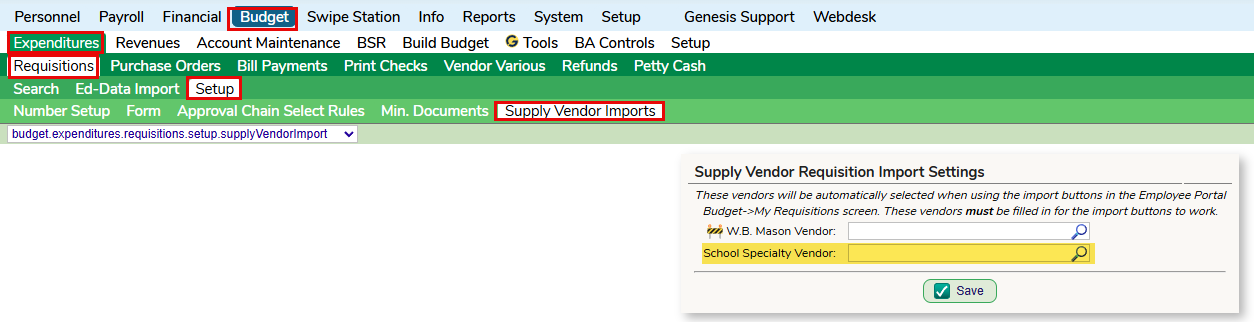
2 - Set up your supply order vendor.
- From the Budget > Expenditures > Requisitions > Setup > Supply Vendor Imports screen, enter your School Specialty OR WB Mason Vendor and click Save.
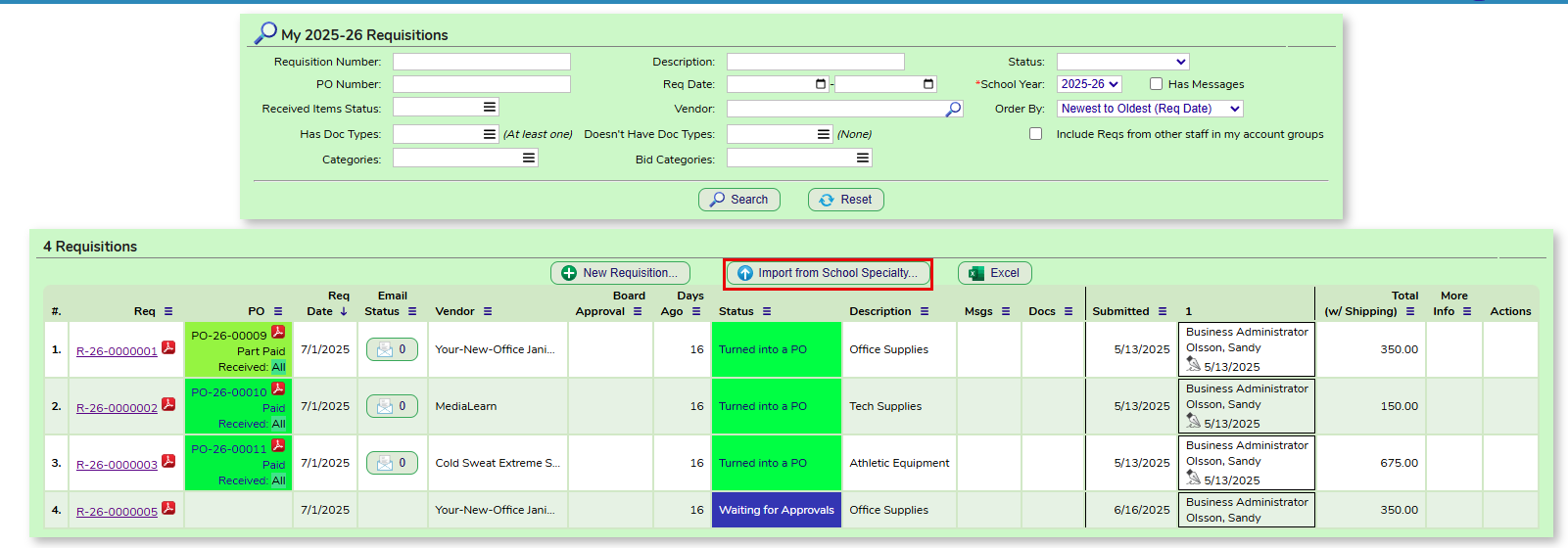
3 - To import the School Specialty cart, go to the Budget > My Requisitions tab in your employee Portal. Click on the Import from School Specialty button.
1 - Click on the Choose File button and navigate to the location on your computer where you saved your School Specialty cart.
2 - Choose the approval chain these requisitions should travel through
3 - Click the Import Requisitions button.
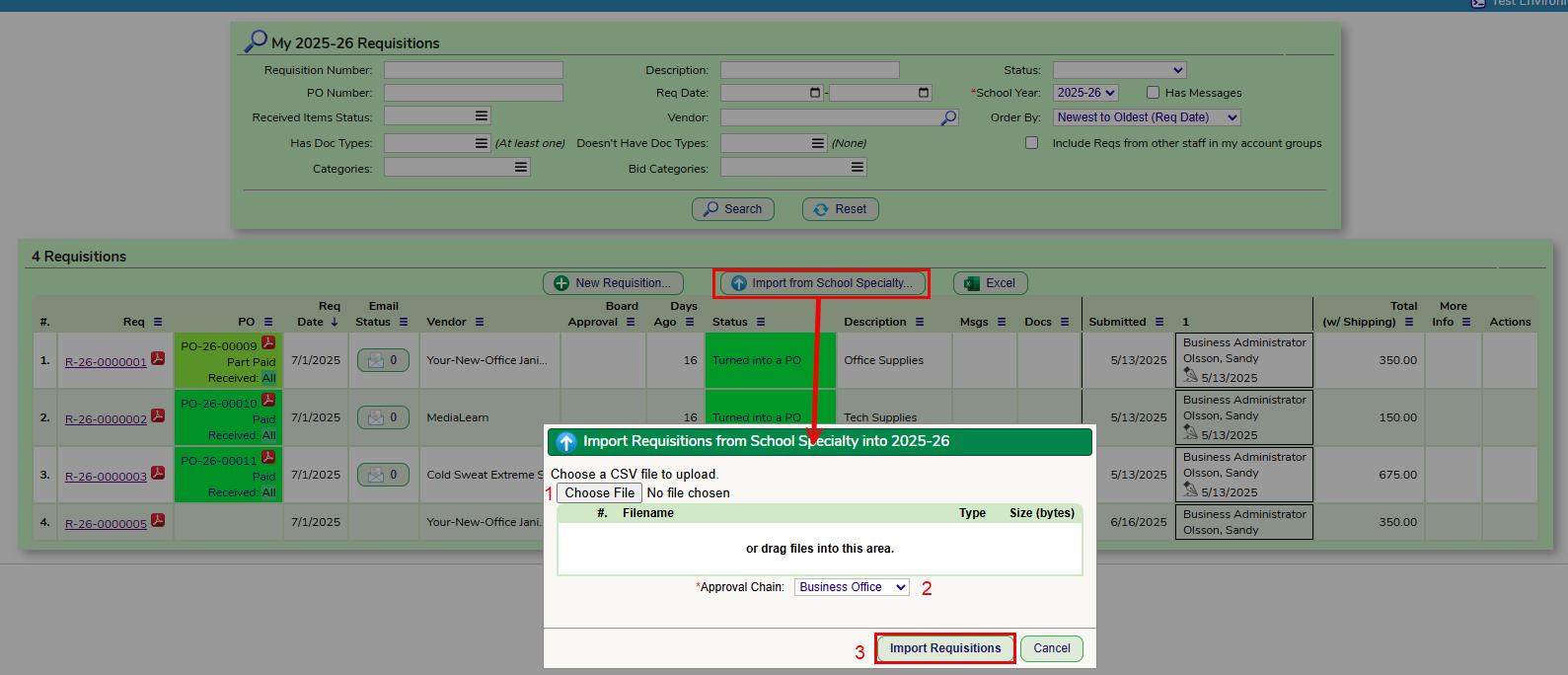
4 - The requisitions will be imported in the Filling Form status. You will now be able to go into each requisition and review all the details and make edits/adjustments as needed. Essentially "clean it up" before you submit it for approval.
Was this article helpful?
That’s Great!
Thank you for your feedback
Sorry! We couldn't be helpful
Thank you for your feedback
Feedback sent
We appreciate your effort and will try to fix the article