For districts who do not import attendance from a third-party provider, such as Frontline or Red Rover, you can manually take attendance in SchoolFi. Permission can be granted to staff in each school who will be responsible for posting their school's attendance each day.
Below are the steps to take to grant permission to take attendance to a specific location. The staff taking attendance for their school will only be able to see the staff in their designated location.
Import Security Role -
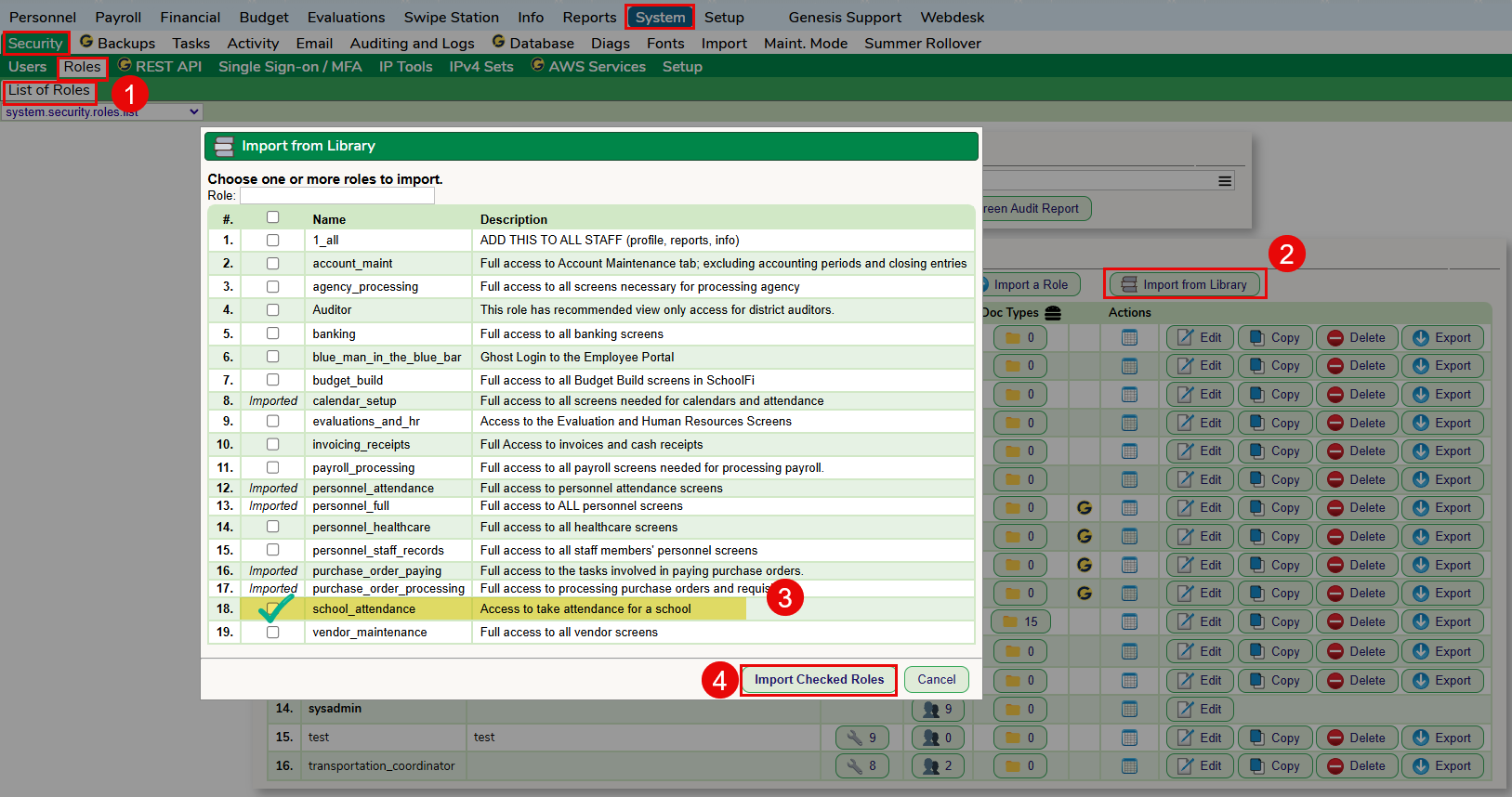
From the System > Security > Roles screen, click on the Import from Library button. Check off the school_attendance role and click the Import Checked Roles button.
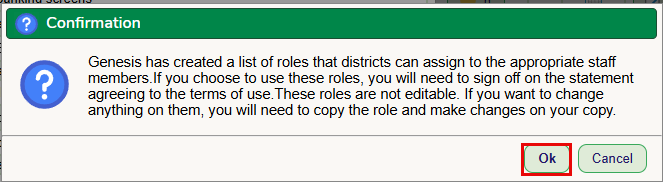
Click OK to agreen to the terms of use:
SchoolFi User Creation -
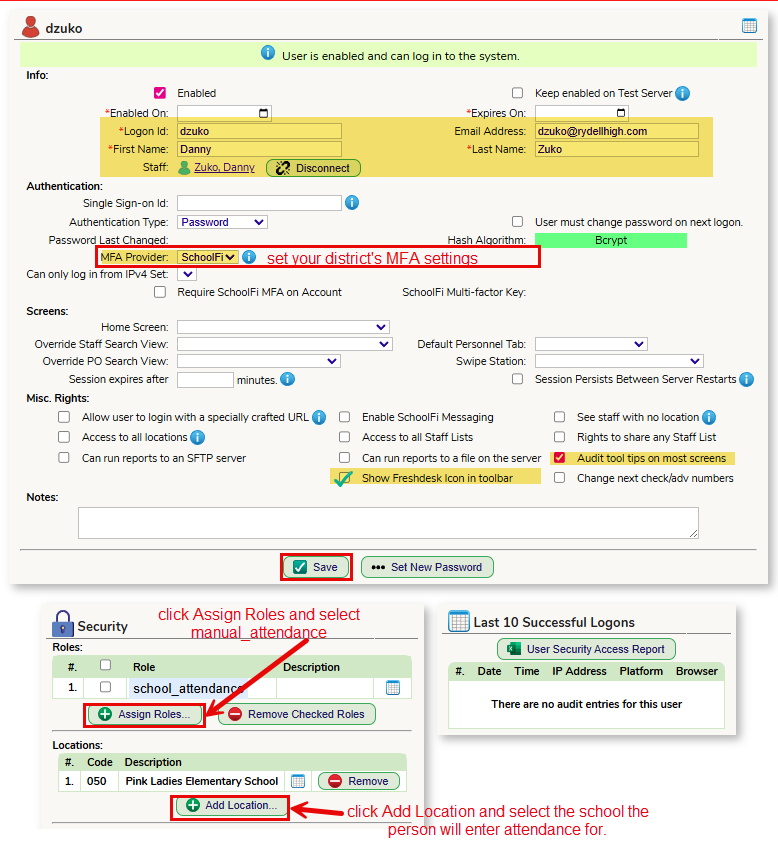
On the System > Security > Users screen, click the Add User button. Enter the Login ID, their Last and First names and click Add.
The following screen will open. Complete the highlighted areas. You should enter the Authentication Type and MFA Provider your district uses. Assign the school_attendance role you imported in step 1 and assign the school in which the staff member works.
Entering attendance for a specific location -
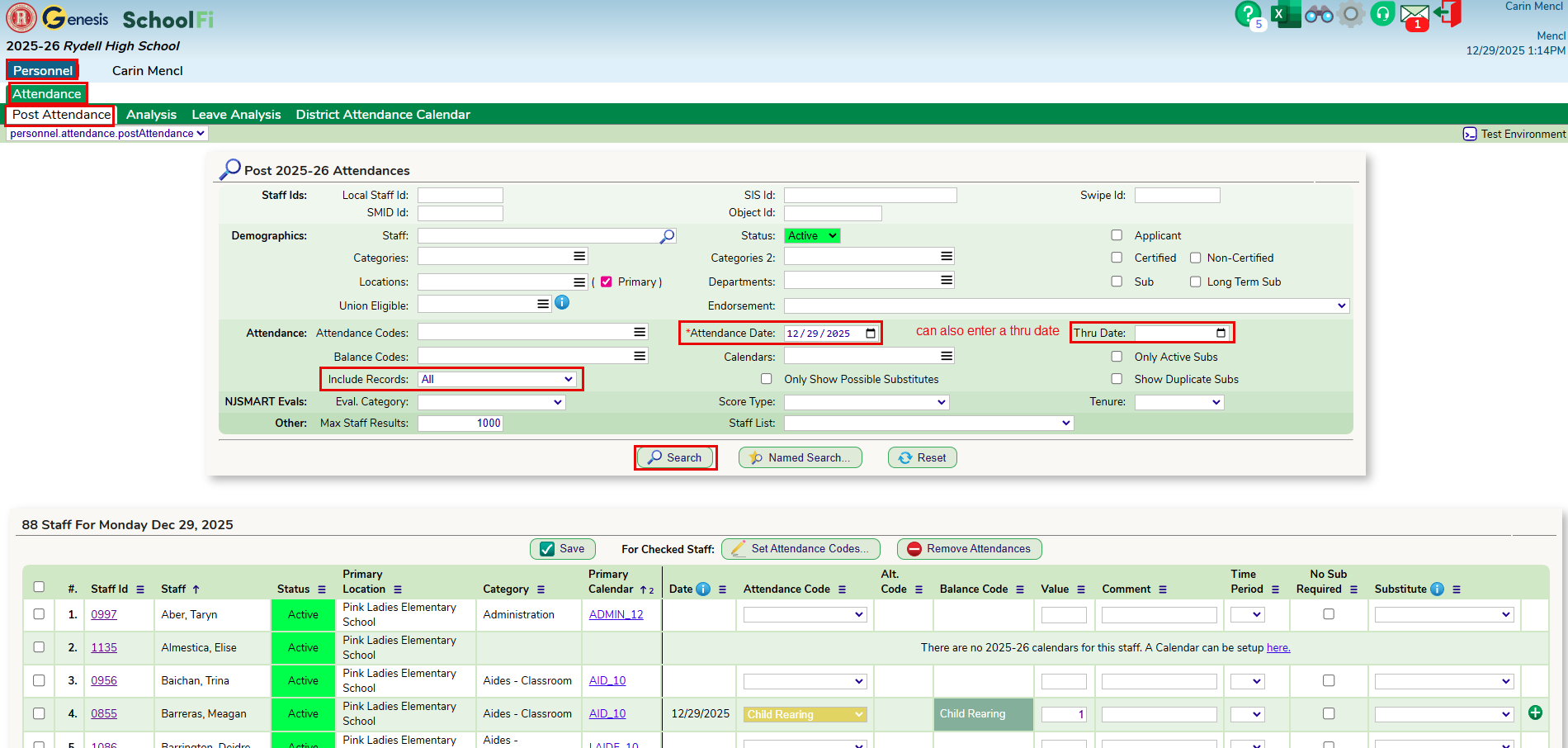
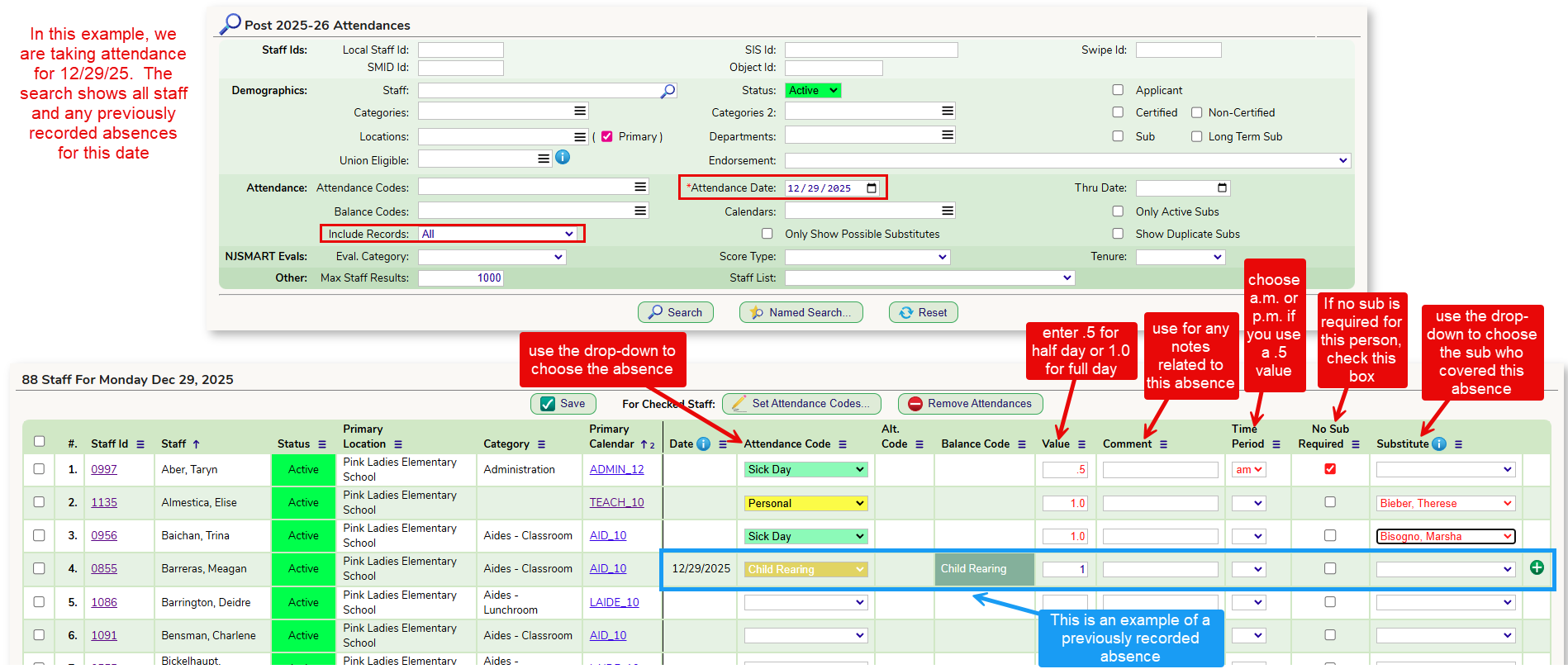
On the Personnel > Attendance > Post Attendance screen, you can use any of the search criteria in the search fields box to narrow the data down to your needs. You will only see the staff in the location in which you were assigned.
Recommended search fields for entering attendance for a specific date or range of dates:
- change the "Include Records: field to All. This way you will see all attendance that was previously entered for the staff for the date(s) selected. This prevents you from duplicating attendance entries.
- If you want to take attendance for a specific date, use the "Attendance Date" field to choose the date.
- If you want to take attendance for a range of dates enter the from date in the "Attendance Date" field and the thru date in the "Thru Date" field.
- Click the Search button.
- You will see all the staff for your location at the bottom of the screen. NOTE: If you have more than 1000 staff members, change the "Max Staff Results" number to a higher number so you see all your staff members.
- Data on this screen can be exported to Excel by using the Excel icon at the top right corner of the screen.
To take attendance for individual staff members:
For each staff member, complete the fields to show all the criteria for this date's absence. See the example below.
To mass set an attendance code to multiple staff members:
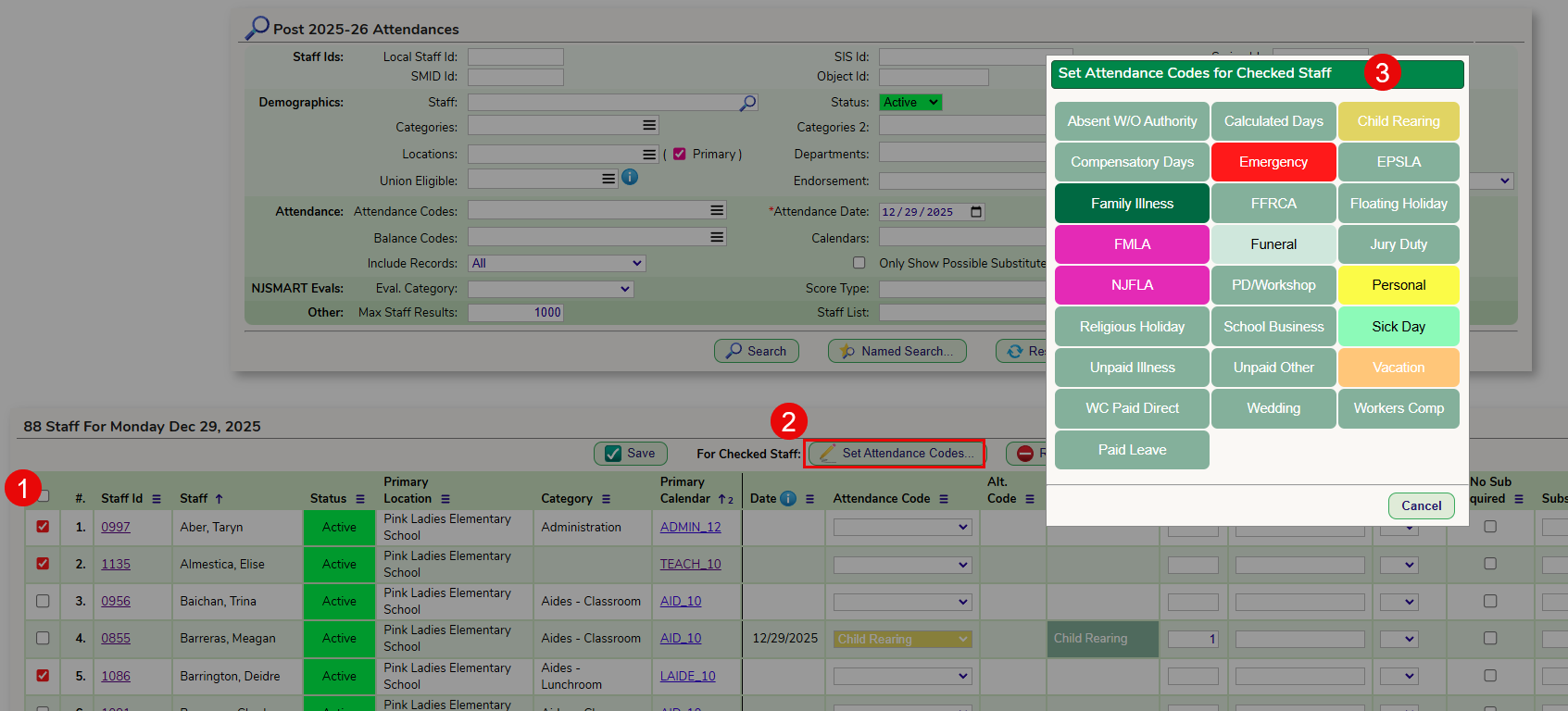
An example of mass setting an absence reason for multiple staff members is a Field Trip.
- check off the staff members who went on the Field Trip
- click the Set Attendance Codes button
- select the absence reason
- you will see the reasons set for those you checked off, click Save.
- after the absence reason is set, you can go ahead and enter the Value and any other columns you wish to populate.
Reporting for Attendance -
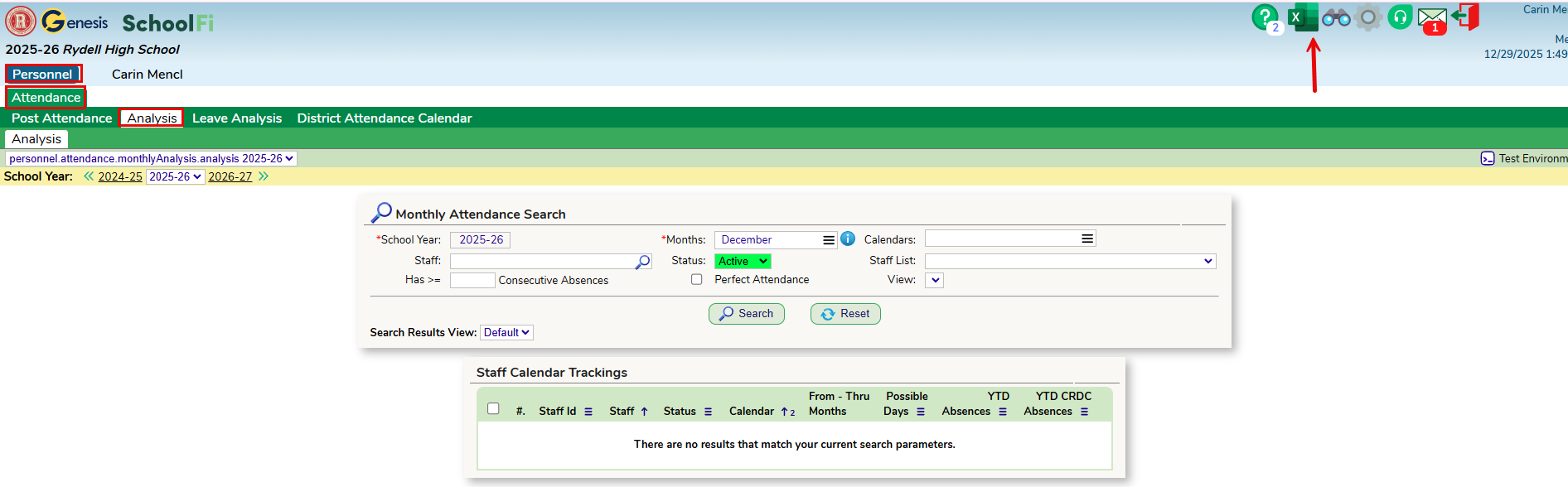
Using the Personnel > Attendance > Analysis screen gives you the ability to use the search criteria to populate data on attendance and export the search results to Excel using the icon at the top, right corner of the screen.
Was this article helpful?
That’s Great!
Thank you for your feedback
Sorry! We couldn't be helpful
Thank you for your feedback
Feedback sent
We appreciate your effort and will try to fix the article