The Payroll >> W2 >> TT W2 Interface tab is where the District will review, analyze, adjust an lock-in the amount that will be included in a staff members Box 12, Code TT for annual W2 reporting.
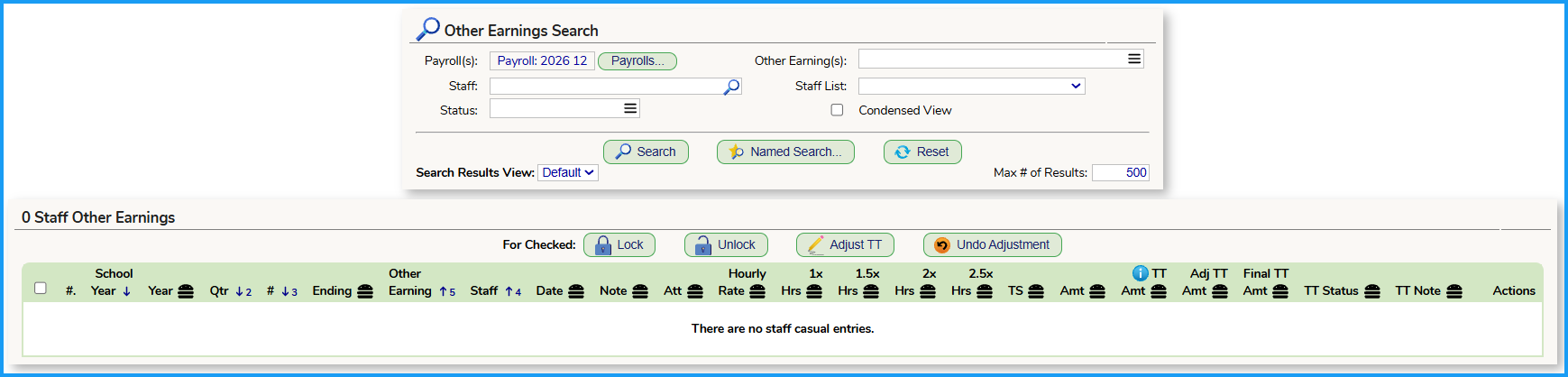
Searching for paid Other Earnings that can be included in a Staff member's Box 12, Code TT
The District can utilize this tab to search for paid other earnings by utilizing the search parameters at the top of the tab. Other Earnings tat were designated as 'Qualified Overtime" will have the "(Box TT)" designation when searching for paid Other Earnings.
Reviewing and/or Adjusting the TT amount to be included on the W2
Once the District searches for paid other earnings the tab will be populated with the paid other earning information.

- Information for the paid Other Earning
- The Date(s) and Note that was included on the Paid Other Earning
- Attendance information to be utilized in analyzing the paid Other Earning for TT designation. If the paid Other Earning was created from a Timesheet, ONLY absences that correspond to the Timesheet dates are reflected. If the paid Other Earing as manually entered or imported, the absences for the entire school year are listed.
- The Hourly Rate utilized in the paid Other Earning
- The Hourly rate factor that was utilized in the paid Other Earning
- The PFY of the Timesheet that was submitted when the paid Other Earning was created
- The total paid amount of the Other Earning
- The Initial TT amount. As noted in the tool tip, if the paid Other Earning has a 2x or 2.5x rate, the TT Amount recalculates to a 1.5x rate.
- Any Adjustments that are made to the TT amount are listed
- The final amount that will get included on the staff member's W2, in Box 12 Code TT for the paid Other Earning
- Status of the TT (Unlocked or Locked)
- Note that was entered for the paid Other Earning
- Action Button(s) for the paid Other earning
Reviewing the TT amount for attendance conflicts
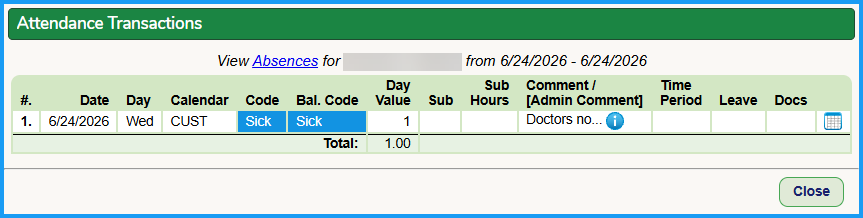
The District may want to review an employees attendance records to ensure the individual paid Other Earning is included or excluded from the TT amount. The column headed "Att" will include the employees attendance information.
If the paid Other Earning was generated from a SchoolFi electronic timesheet, absences will be listed ONLY for days included in the approved timesheet for the paid Other Earning.
Here is a sample record:

The contents of the pop-up:
The approved and paid timesheet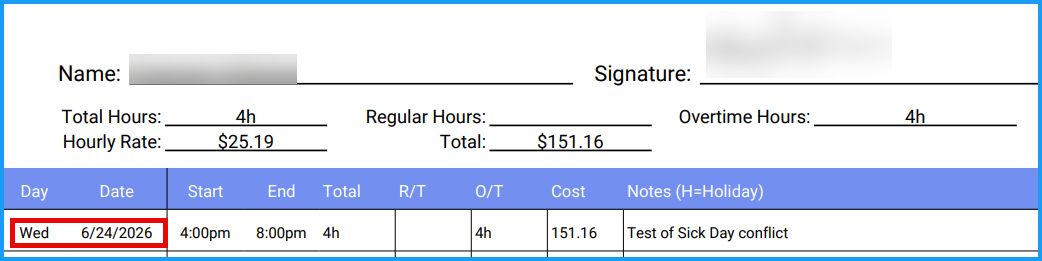
If the paid other earning was manually entered or imported, the entire school-year absences will be listed in the pop-up.
Processing an Adjustment to the TT amount
If an adjustment to the TT amount is required, click on the Adjust TT button (#12 above) an complete the information in the pop-up window. Ensure the Save button is clicked after the adjustment is recorded. 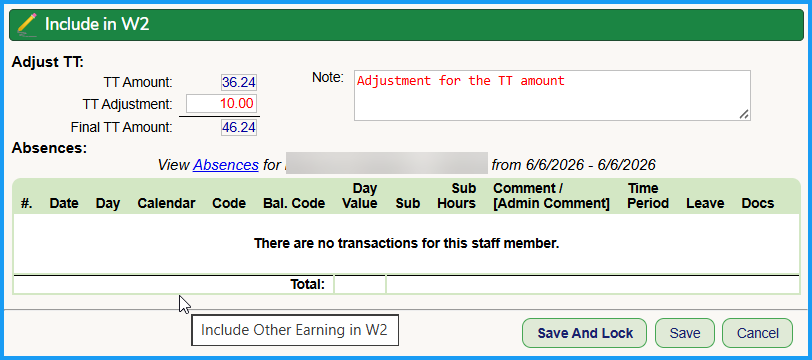
After the adjustment is saved, the adjustment and the note will be included in the TT record and the Status will be updated to Unlocked:
The District will then have the option to either Clear the Adjustment or to Lock the Adjustment for inclusion in the staff member's W2.
Once locked, the Status will be updated to Locked. The District will always have the option to unlock a record and process any required adjustments.

ALL TT RECORDS MUST BE LOCKED TO BE INCLUDED IN THE STAFF MEMBER'S W2 RECORD.
Mass-locking the TT amount for paid Other Earnings
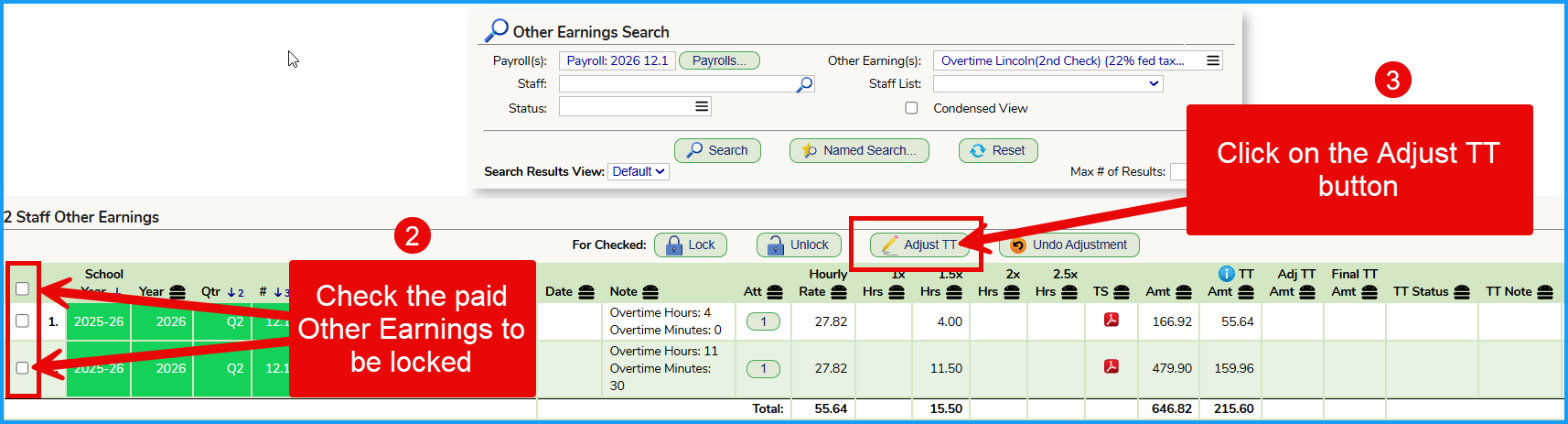
If the District wants to mass-lock the TT amount for numerous staff / and/or Other Earnings, it can be processed as follows:
- Search for the paid Other Earrings that will be mass-locked
- Check off the paid Other Earnings that will be mass-locked
- Click on the Adjust TT Button
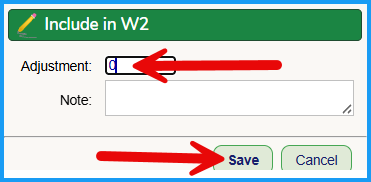
- Enter "0" in the pop-up box and Save
- The status will now be changed to Unlocked. Check off the unlocked records that you want to lock, and clock on the Lock button:

- The status will now be updated to Locked and the data will be "ready" for inclusion on the staff member's W2 record.
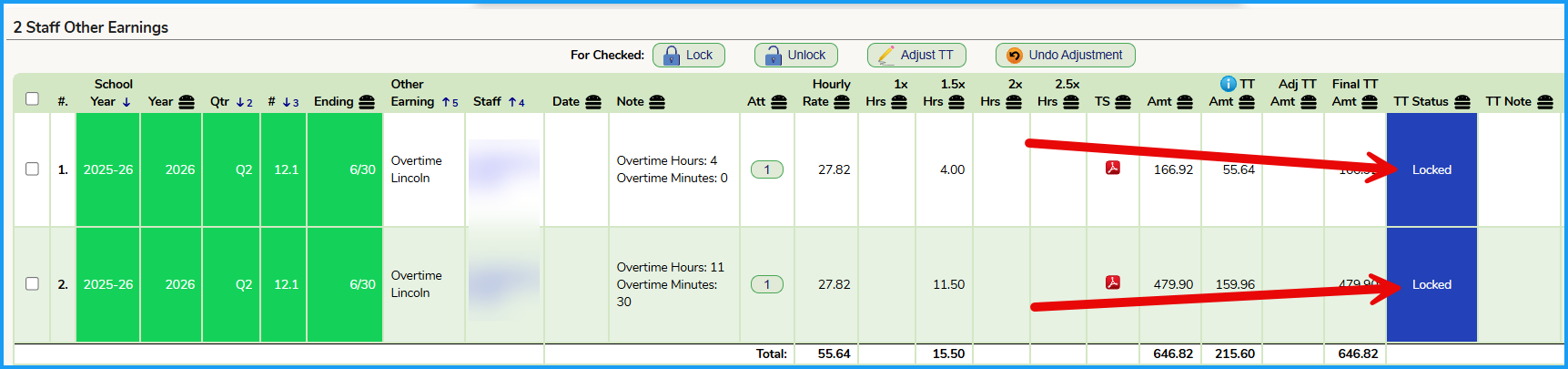
ALL TT RECORDS MUST BE LOCKED TO BE INCLUDED IN THE STAFF MEMBER'S W2 RECORD.
Was this article helpful?
That’s Great!
Thank you for your feedback
Sorry! We couldn't be helpful
Thank you for your feedback
Feedback sent
We appreciate your effort and will try to fix the article