The following procedures can be performed when your plans are renewing, and the rates are updated.
These instructions apply no matter when your plans renew.
View the recording of the Webinar from May 6, 2026
Step 1 – Rollover Health Plans to next year
Go to the Personnel > Setup > Health Plans > List of Plans screen:
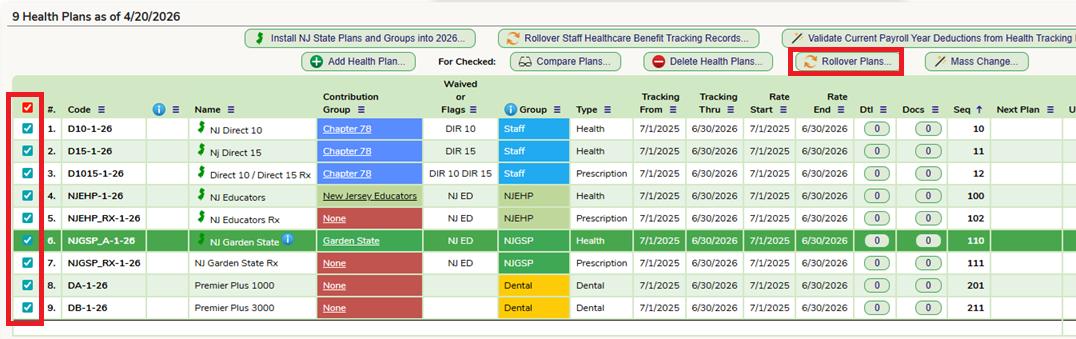
In the first column, check the boxes for plans you wish to roll over, and click the “Rollover Checked Plans” button. This brings up the following:

If you want all of your monthly rates increase by a fixed percentage, enter it here and click “Rollover”. If not, leave it “0” and click the “Rollover” button.
Step 2 – Enter the rates for the new year
Be sure you are in the next period by changing the “Plans Active On” date field to the start date of the next period. In this example, the old plans ended June 30th, 2026, so to see the rolled over plans you will change the date to July 1st, 2026, as highlighted below:
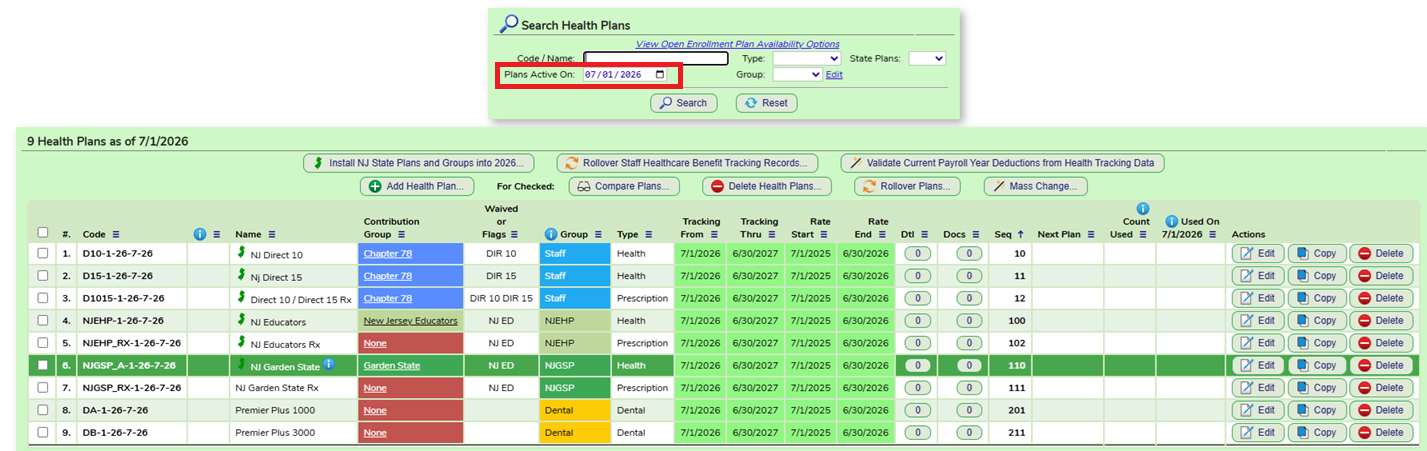
On this screen click on the EDIT button for each plan and enter the new rates.
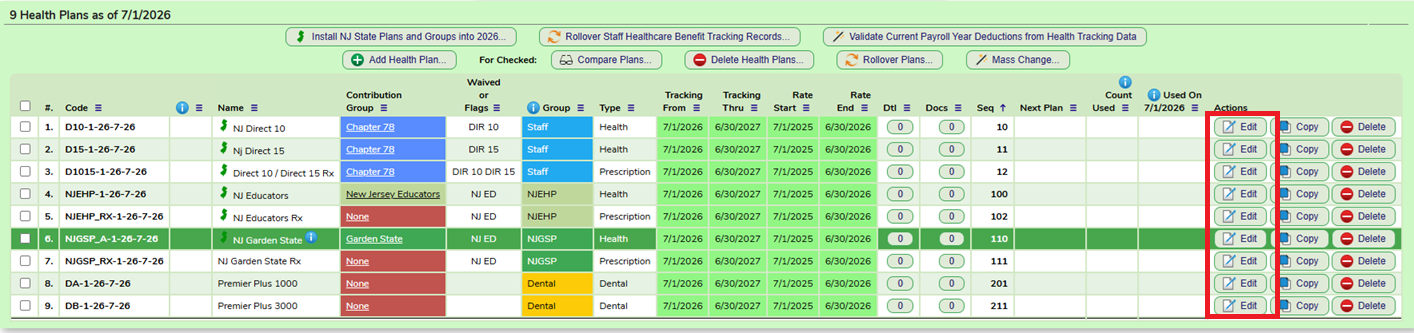
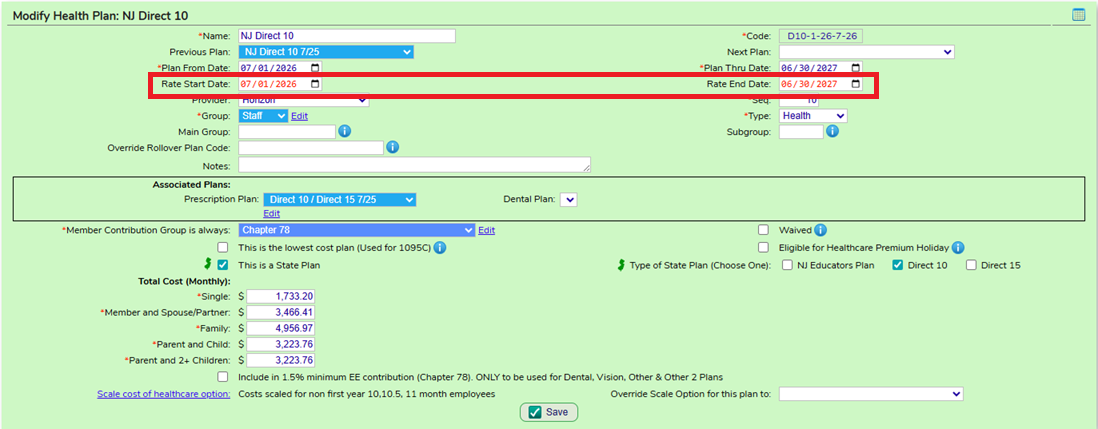
On the bottom of the details screen, you can update the monthly rates and click on the SAVE button.
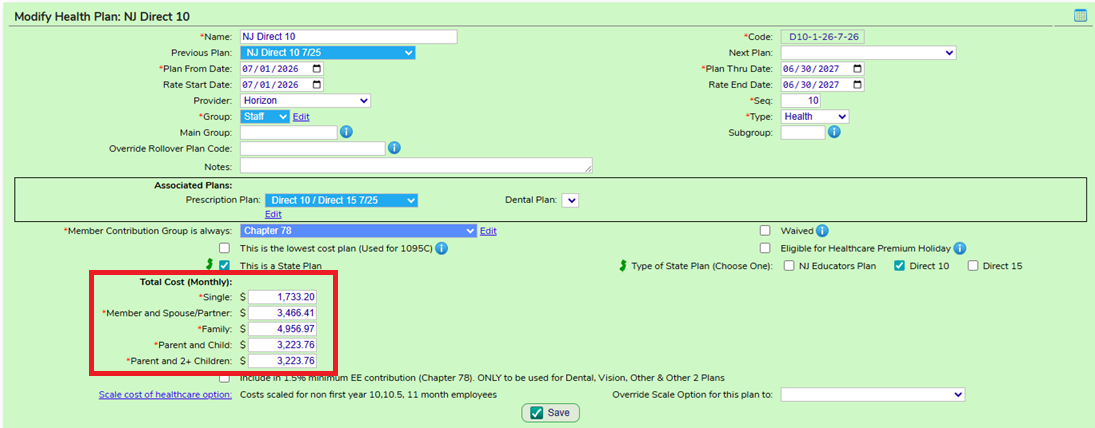
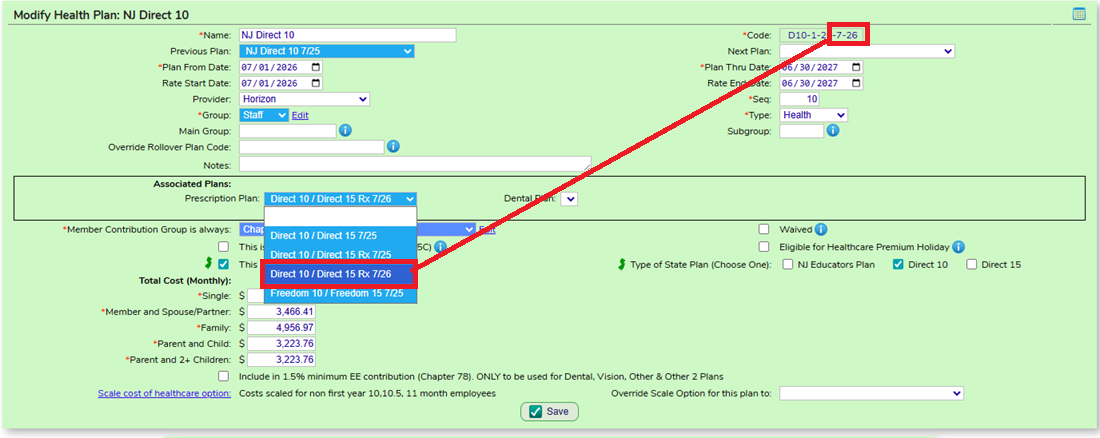
For each rolled over MEDICAL PLAN, you MUST review the Associated Plans and ENSURE the Associated Plans are updated to the respective rollover over plans.
This means, matching the month and year in the found in the code with the month and year of the associated plans. Failure to do so will result in staff potentially being linked to incorrect plan rates.
Step 3 - Reviewing / Updating the Contribution Groups
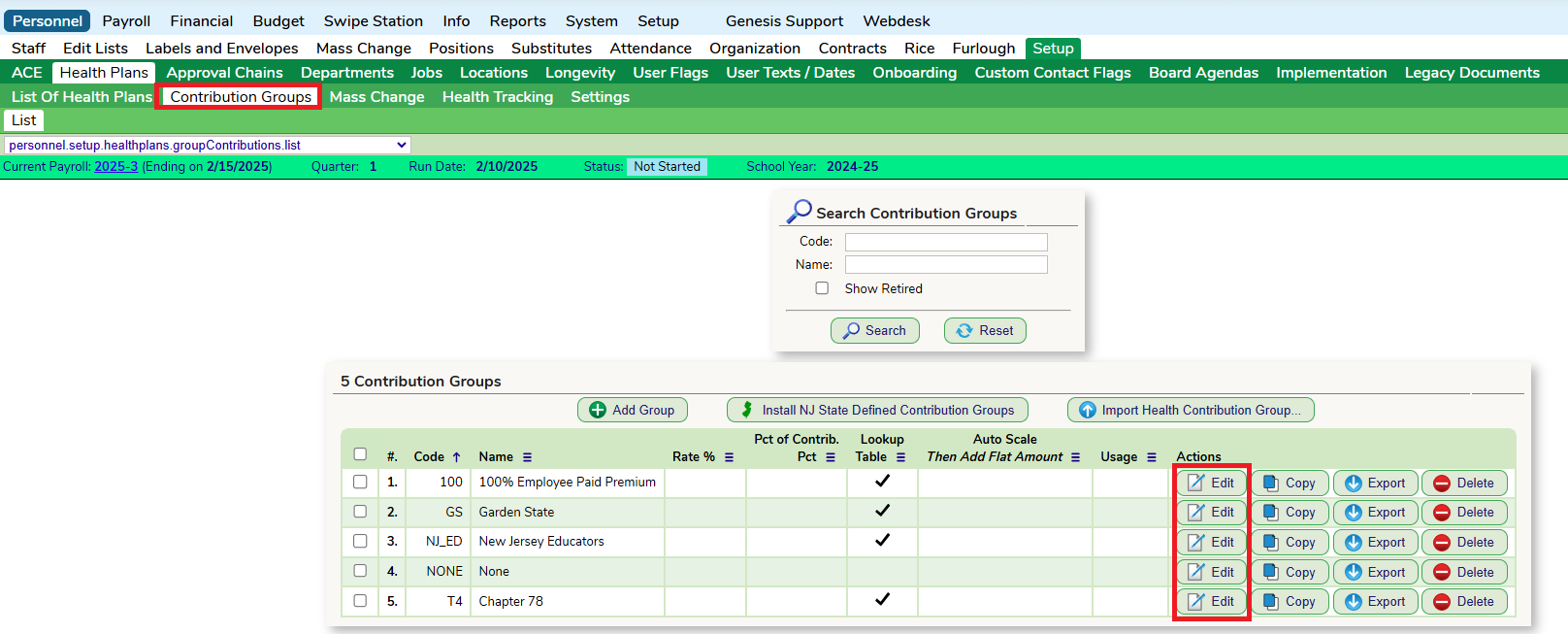
On the Contribution Groups tab, click the Search button to view all the Contribution Groups. Select "Edit" to view the plan years for each group:
Review and identify any custom contribution groups that are currently available and WILL NOT be available at the end of the new health plan period / year. When in a Contribution Group, ensure that the Current and Future boxes are checked to verify these contribution dates do not already exist in the next plan year.

In this example, the "Garden State" contribution group is currently available NOT available in the future plan year (in this example that would be 7/1/2026-6/30/27).
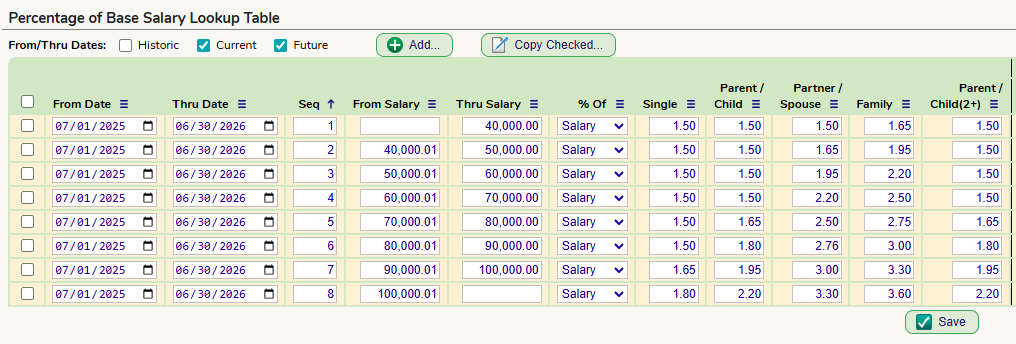
To make new copies of the contribution group, select all the boxes from the current year and select the Copy Checked button.
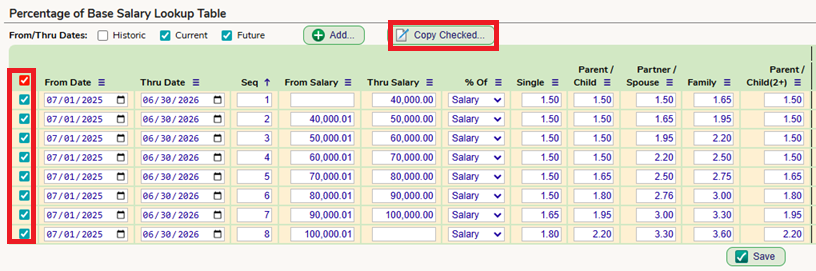
Enter the From Date and the Thru Date for the new health plan period / year and set the sequence number for the first new record. We recommend you select a sequence number higher than the last current sequence number. Then click on the Copy button.
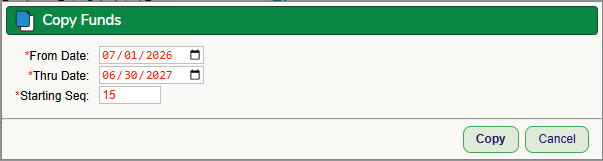
Then the District can update the percentages / flat monthly amounts / salary caps for the newly created records (in the new health plan period / year).
Step 4 – Rolling staff into the new period plans (NOT utilizing the Open Enrollment module) or Process Open Enrollment
The following procedures are for Districts who are NOT utilizing the open enrollment module. If you are utilizing the Open Enrollment module please review the procedures for Processing Open Enrollment Forms.
Go back to the List of Plans tab and change the date to the current date. In the first column, check the boxes for plans you wish to roll the staff members over, and click the “Rollover All Staff Healthcare Benefit Tracking Records to the next date that the rates change” button.
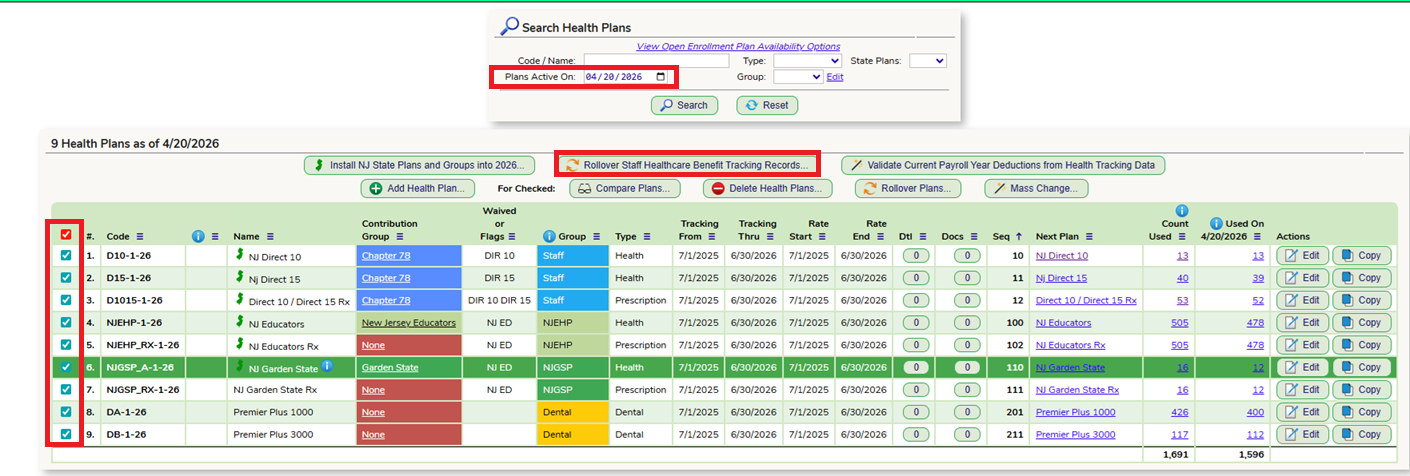
Review the screen and ENSURE the migration information is correct.
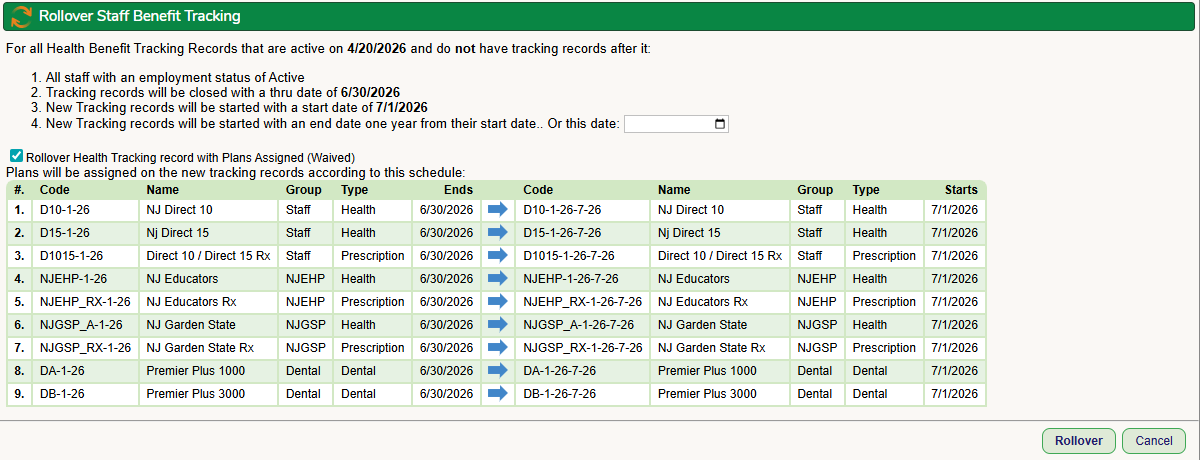
If everything is correct, click Rollover and all staff will be rolled into the new plans in the new year.
If staff are making plan changes in the new 'round' of plans, at this time, the district can review those staff and make the changes. It is recommended to spot check employees as well to ensure the rollover is accurate and complete.
Feel free to import this "Future Healthcare Review" Search Result View to use on the Personnel - Staff - Search Staff screen if you would like a report of the rolled over plans.
Was this article helpful?
That’s Great!
Thank you for your feedback
Sorry! We couldn't be helpful
Thank you for your feedback
Feedback sent
We appreciate your effort and will try to fix the article