If you are new to School Fi (or even a veteran who may need a refresher), this session will guide you on what reports to run in preparation of your monthly closing. Included in the topics are Cash Receipts, Cash Disbursements, Board Secretary Report Analysis, Gov Fund Analysis, and Budget Transfers.
The purpose of this article is to provide a roadmap for closing out your books each month.
Bank Reconciliations:
- Close the month:
What documents do you need to close the month (i.e. prepare your monthly bank reconciliation/tie to cash balance)
Documents needed:
- Cash Receipts
Hint: Run your refund report first
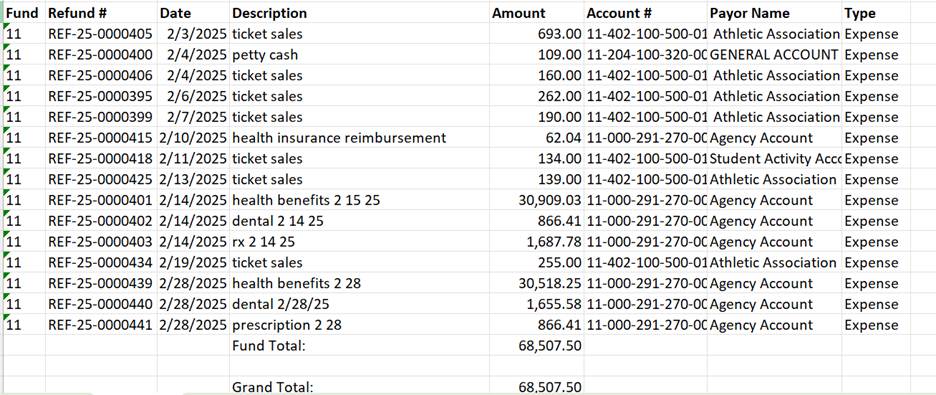
**Because refund report has an additional column**
Reports/Refund List
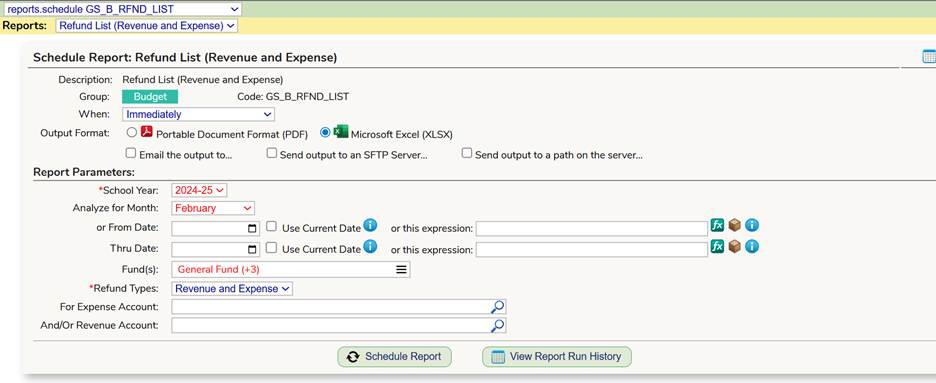
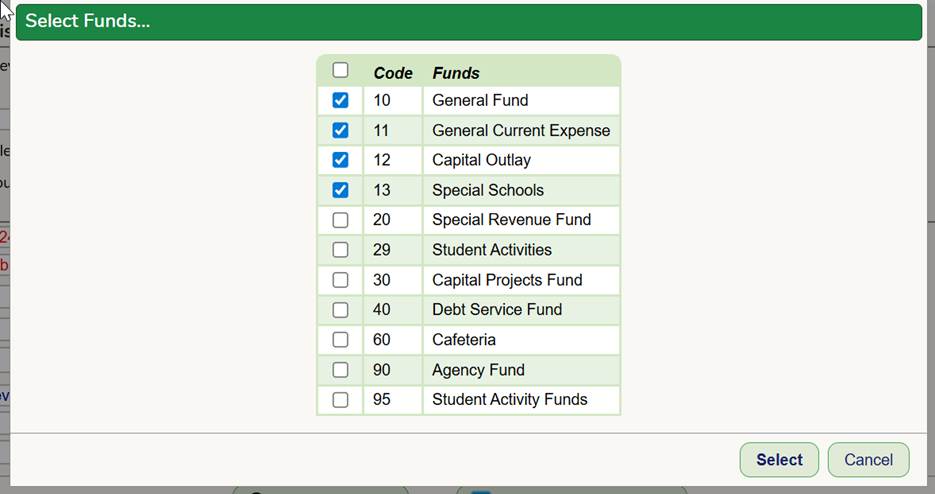
This is what the report will look like:
Now run your receipts reports:
- Reports/Receipts List
- Year/month/
Fill in: Month or dates, select fund and also if you want to exclude 90. 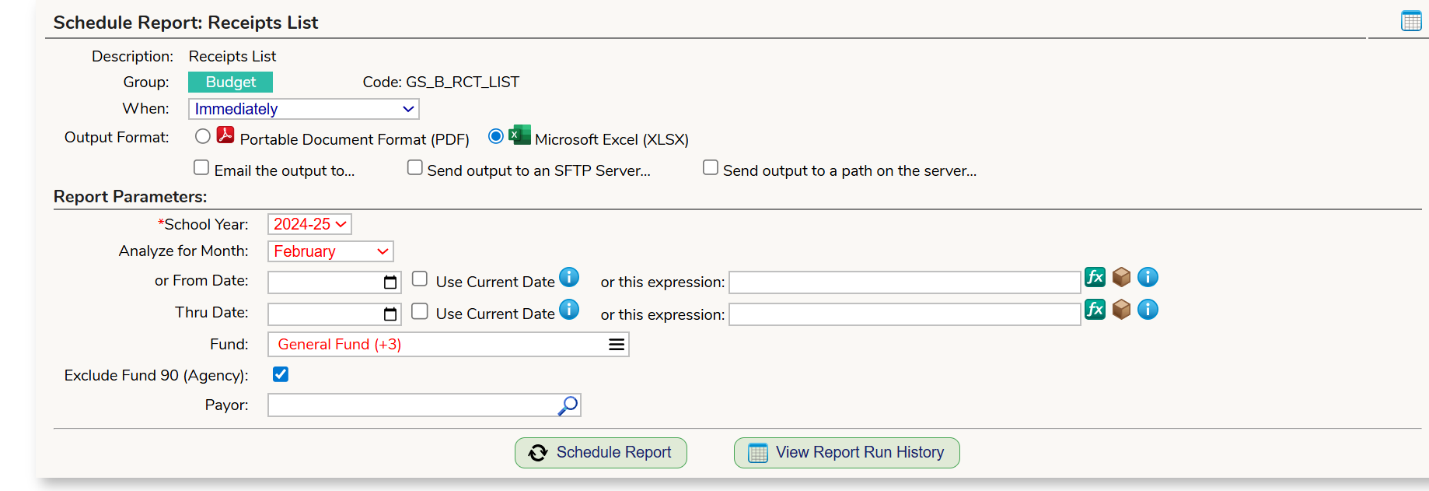
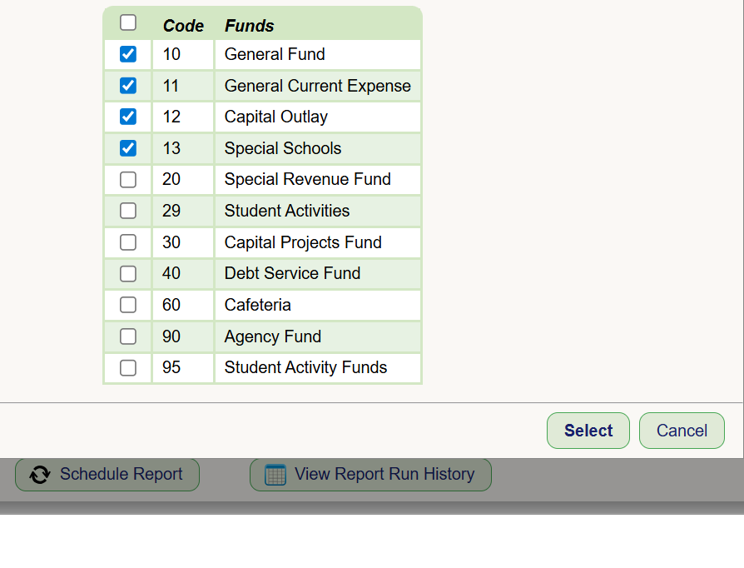
When you run the report it will look like this in excel
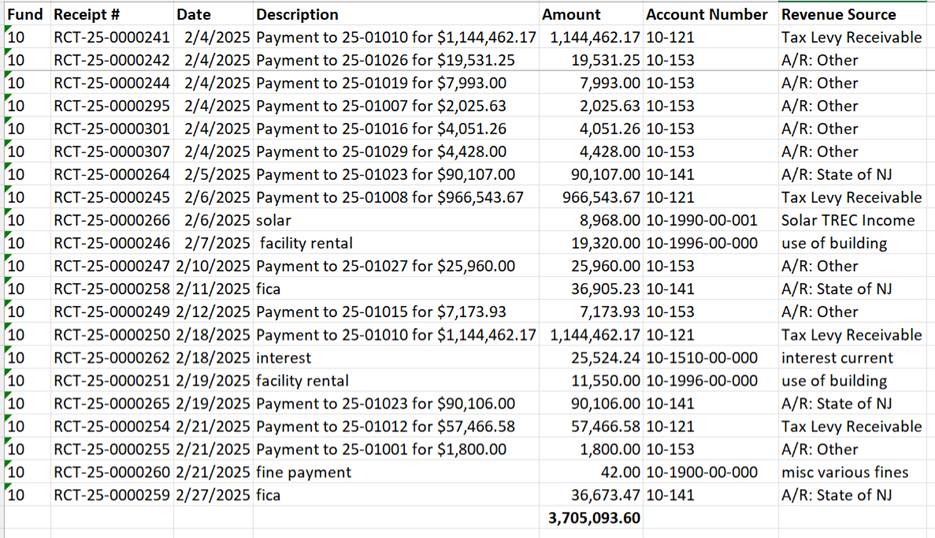
Copy the receipts data and add to the refund report:
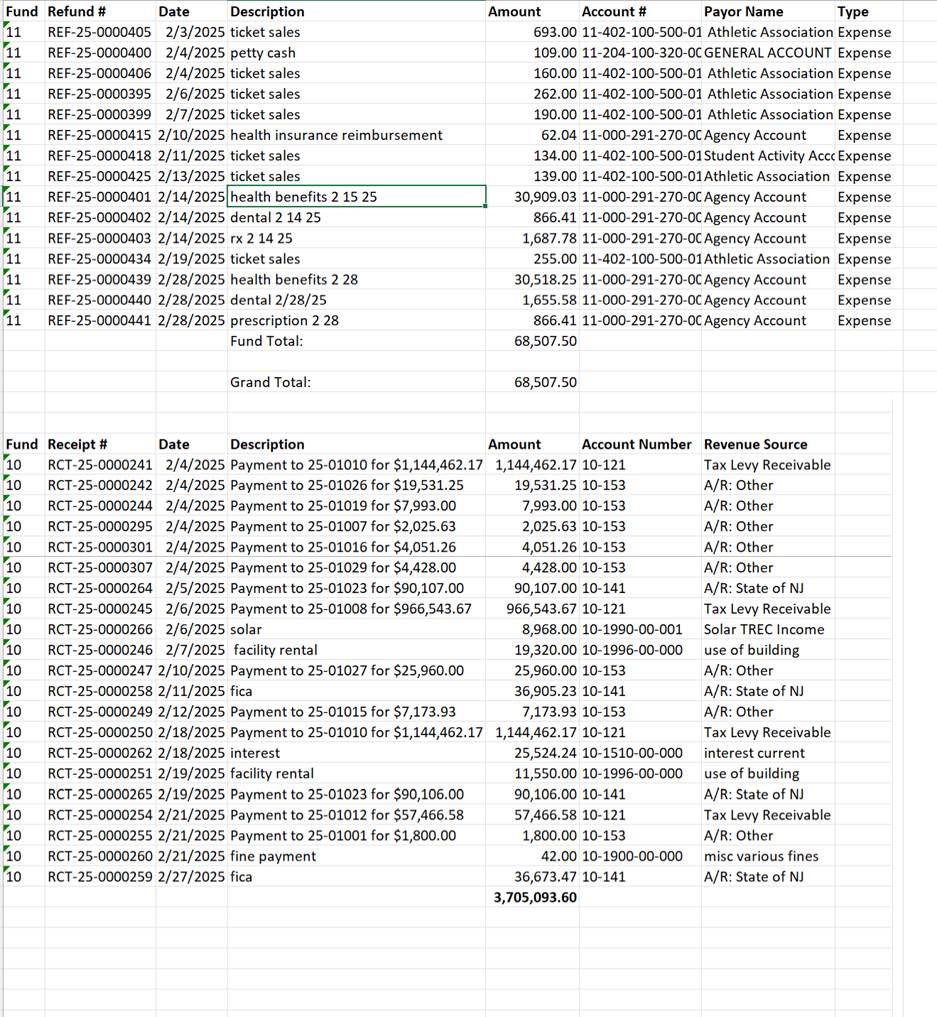
Now sort the data:
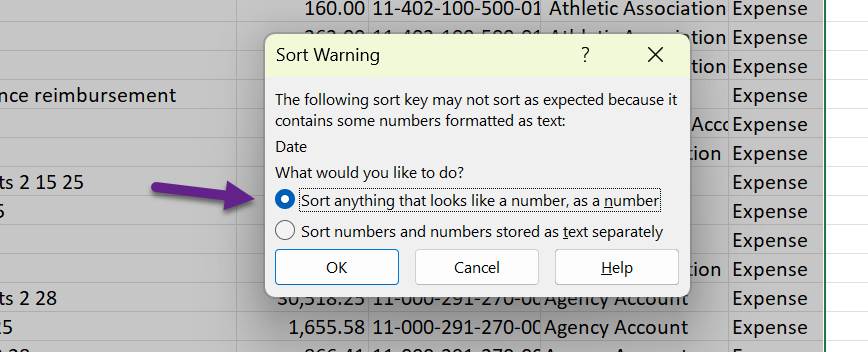
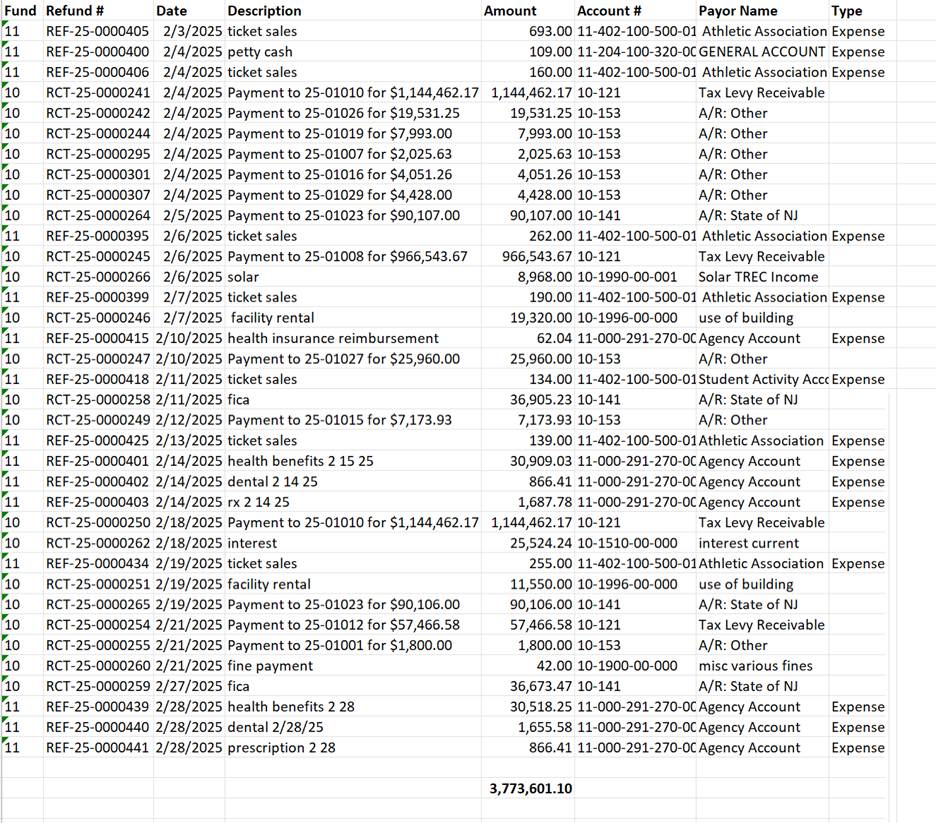
Save file – this is your receipts for the month (excluding journal entries etc- more on that later).
Alternatives:
You can view the data:
Receipts: Budget/Revenue/Receipts
Refunds: Budget/Expenditure/Refunds
And export to Excel. However, the columns will not line up exactly as they do when you run the data from the report module.
---------------------------------------------------------------------------------------------
Expenditures (Cash Disbursements):
Information Needed:
Check Register:
Reports/Budget Check Detail Register
Note: If you run the report in PDF, it will look like a typical check register.
If you run the report in excel, if a vendor has multiple Pos/Invoices on a check, the excel report will not summarize the check number (like it does in PDF)

However, if you want to create a list of uncashed checks to cut/paste to your bank reconciliation, you can do it in this manner:
(what you are going to do is record the checks that were cleared in that month (current month only) and then export the uncleared checks into an excel file for cut/paste into outstanding checks.
Go to: Financial/Setup/Bank Accounts
Select the bank account that you want to record the cleared checks. Select checks
Make the following changes on the screen:
All checks, issue date (for the month) – hit search
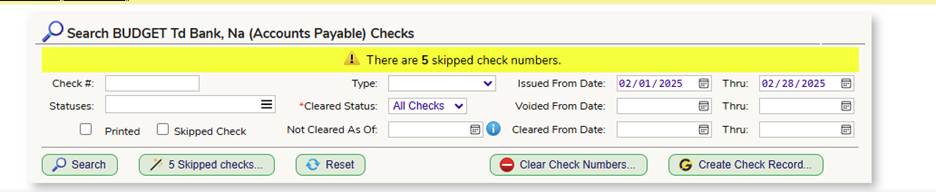
Then, using the cleared checks listed on the bank statement,
Select the checks that cleared on a particular date, select the box to the left, and then select “set cleared date on checked items” – put in the check date and select “set date” – the system will mass update the cleared checks.
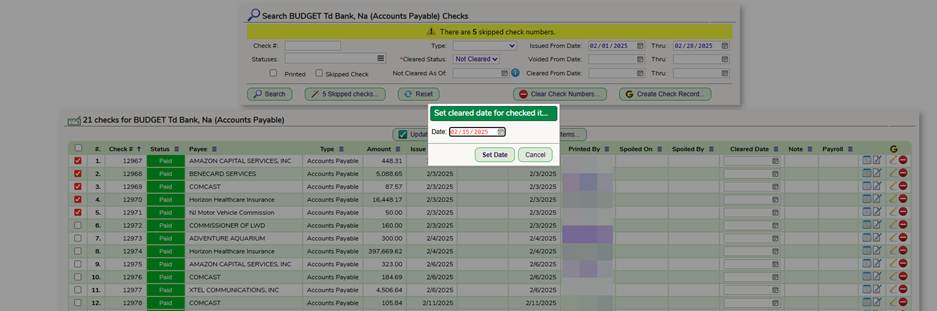
Alternatively, you can type/copy from an excel file the check numbers that were cleared on a specific date.
After you have identified what checks have cleared, you can run a report of the outstanding checks for the month, export it to excel and add to your bank reconciliation as outstanding checks (rather than data entry).
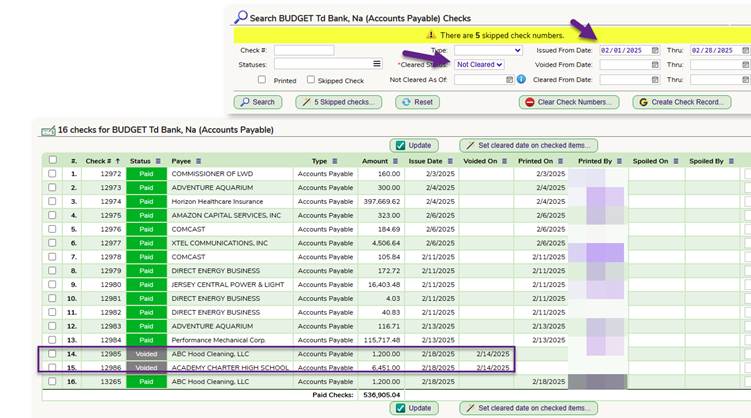
When you export to excel- this is what the report will look like:
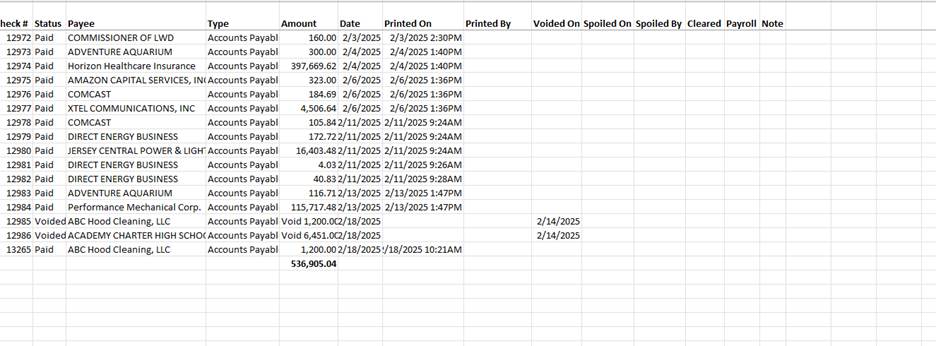
You can now customize the report to match your OS check list. HINT: customize your bank reconciliation OS check list to match genesis.
Now you have Cash Receipts and Cash Disbursements completed.
The final step is the summary of cash to tie out to bank recs:
In School Fi you want the General Ledger Summary of Cash:
Reports/keyword-cash/search
Helpful Hint: You can also highlight the star on the left side of the report information (you can do this for all reports in Genesis) :
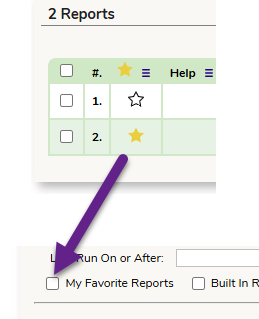
When you navigate to the reports tab, select my favorite reports and click search, and your reports are listed (makes it easier than trying to remember the report that helped you in the prior month, or year)
-------------------------
Summary of Cash:
The General Ledger Summary of Cash is an all-encompassing report. It will record ALL activity (cd/cr/voids/account maintenance entries etc).
It will mimic the summary page of a treasurer report:
Opening balance/CR/CD/Adjustment/Ending Balance
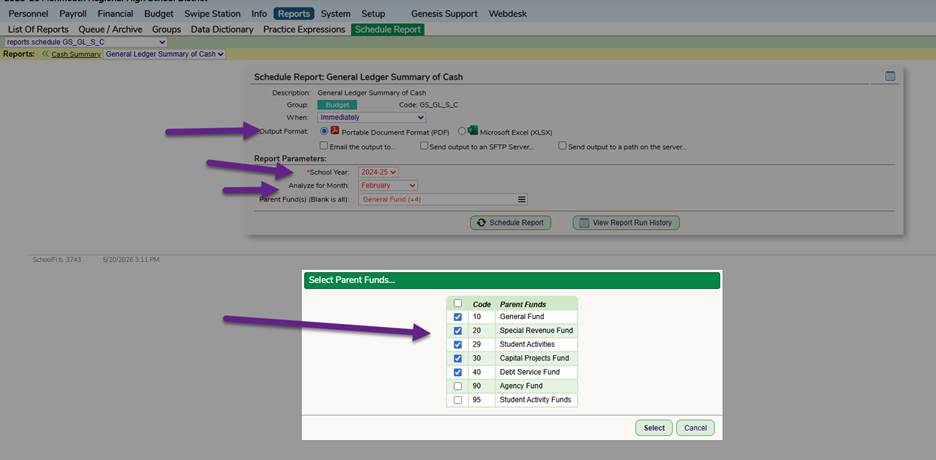
This is a sample of the report:
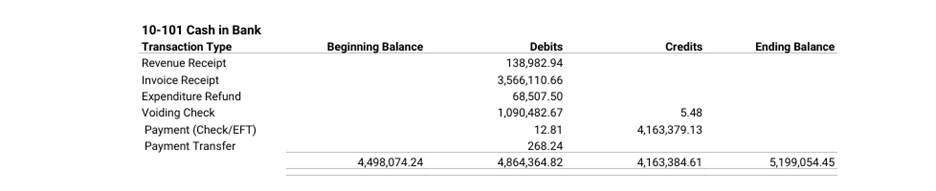
As you can see you have your beginning (make sure it ties to your prior month ending balance), all debits/credits (nicely broken out) and the ending balance.
This is what is your guide for your monthly balance of cash as this encompasses ALL cash entries.
-------------------------------------------
That is what you need for your monthly cash reconciliation.
Continuing to Closing Steps:
Budget Transfers:
Reminder: Transfers now are approved in the employee portal, not in School Fi.
In addition to monthly cash reconciliations, you may be responsible for budget transfers.
If key staff submit requests for approval:
Employee Portal/Portal/Budget/Account Status/Request Adjustment
If BA is preparing all transfers:
Budget > Account Maintenance > Adjustments > Adjustments tab, click on the Add Adjustment button.
You can also click on the budget transfer requests / status to see what was/not approved yet
If you as BA want to prepare transfers:
Helpful hint:
- Run the Reports/Budget summary by Program/ - you can select all funds or just one fund
- Download the file and save as xxmonthxxyearxxbefore transfers
- Then you can either work online or print the report and identify your from/to transfers.
- When you have your transfers ready on your worksheet, you can data entry them.
After data entry, run the reports/budget summary by program again and double check that your transfers are done. Once you are happy with the transfers, save the report as xxmonthxxyearxxafter so you now have a trail for your auditors.
If you want to export your transfers to excel as a shortcut to creating a file for your board agenda report:
Budget/account maintenance/adjustment
In description: type in transfers (or the name you gave the transfer entry)
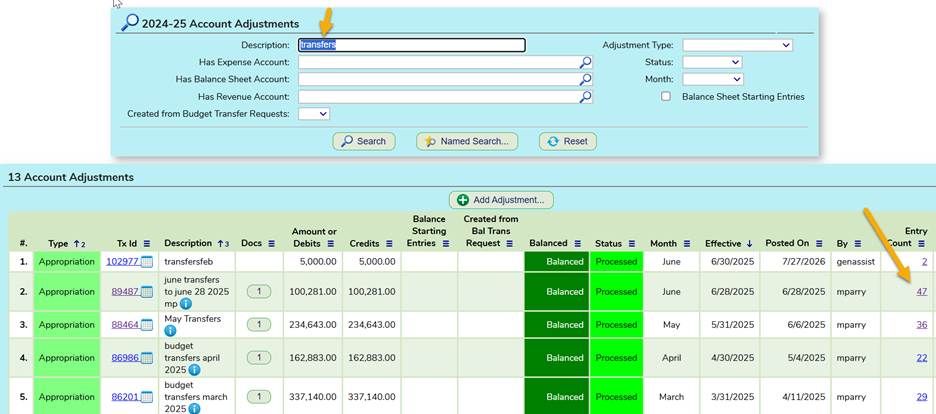
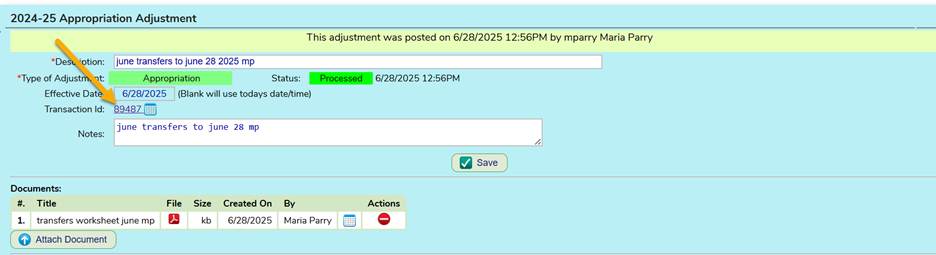
Click on the entry count and click on the transaction ID:
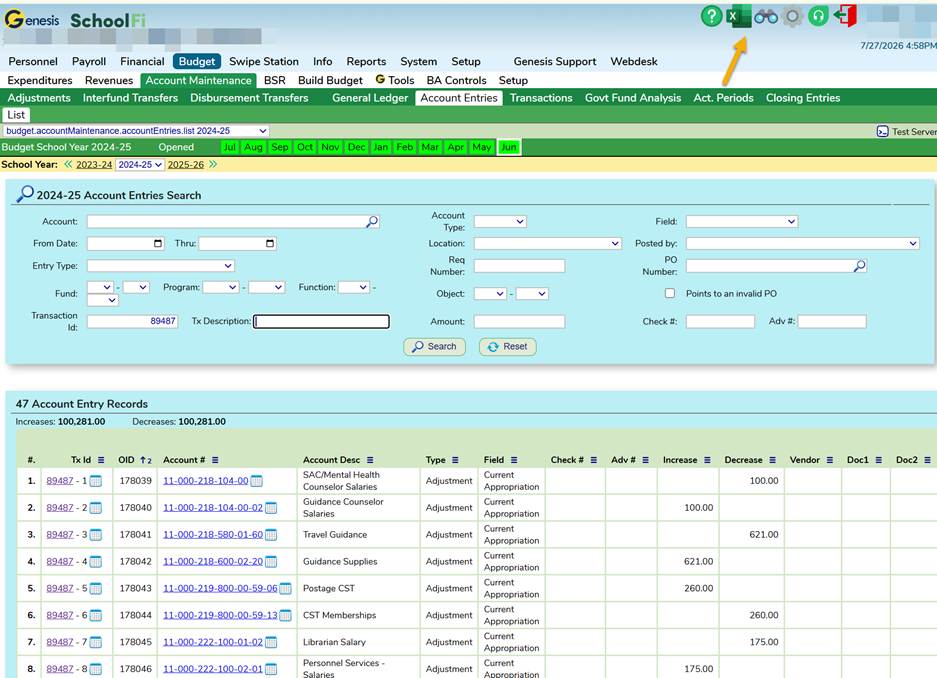
You can export the file to excel and customize to your board agenda item:
The final step in the monthly closing procedures is the Government Fund Analysis and BSR:
Board Secretary Report:
Budget/BSR/select fund/select page
Run this report and make sure you don’t have any errors. Funds are run separately.
Common errors:
Journal Entries – entries to control accounts
Account numbers not matching state chart of accounts
Accounts that do not have a BSR number attached to it
Accounts that are recorded incorrectly (mismatching funds)
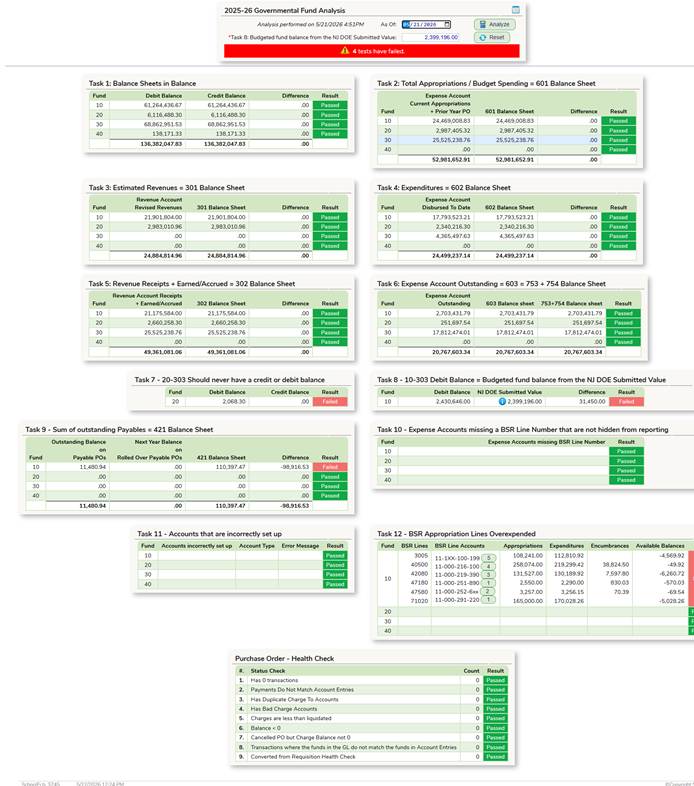
Government Fund Analysis:
Budget/account maintenance/govfundanalysis
Run this report and make sure you don’t have any errors.
Sample run below
Common errors:
Journal Entries to control accounts
Fund 20 entries to 303
Purchase orders in the negative
Don’t forget to read the knowledgebase article on this topic
After everything ties out – you can go to budget/account maintenance/acct periods and close your month!
That’s it! If you have any questions/issues, please reach out to the help desk!
Was this article helpful?
That’s Great!
Thank you for your feedback
Sorry! We couldn't be helpful
Thank you for your feedback
Feedback sent
We appreciate your effort and will try to fix the article