In order for results to be submitted, the results section must be open for collection by the observer. This can either be done right after the approval signature takes place (photo A) or at another point during the year (photo B).
Photo A - Right after/during approval
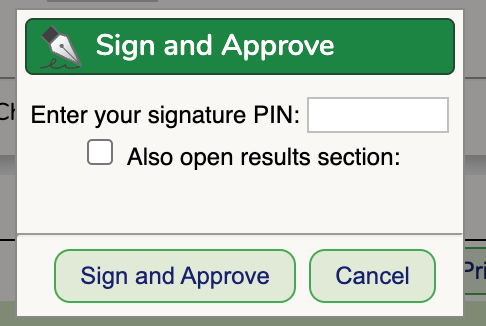
Photo B - Another Point during the year
(Instructions below)
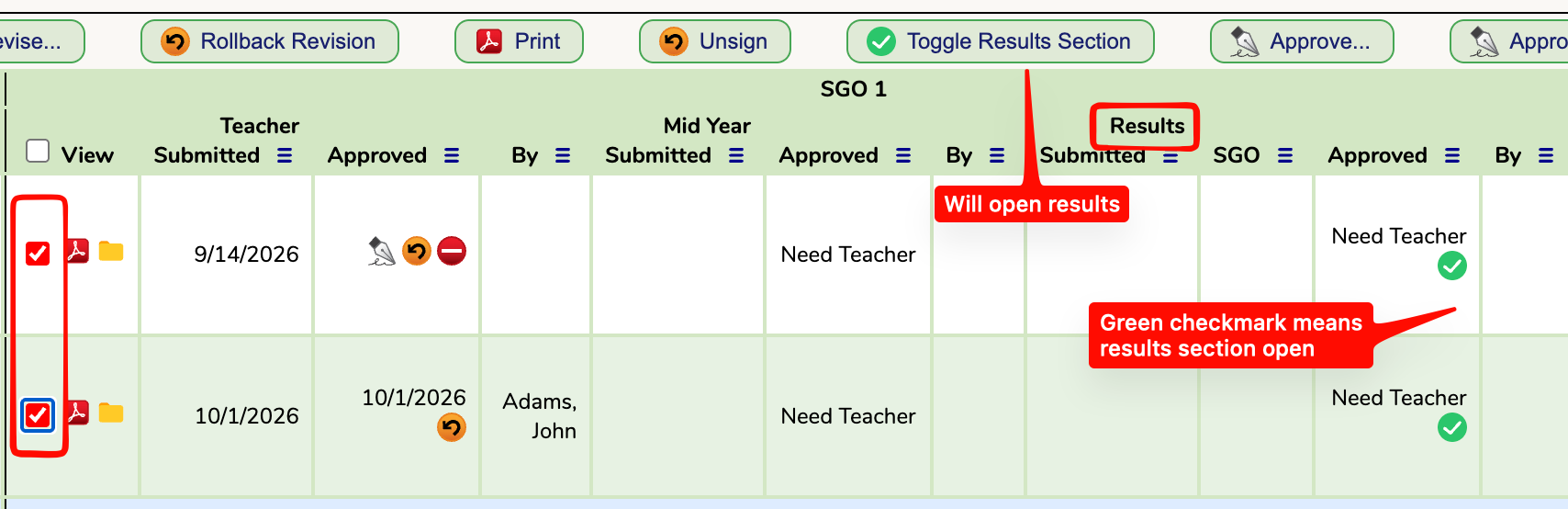
- To open an SGO results section, first click off the SGO(s) you would like to open as shown on the left of the photo above.
- Then click the toggle results section button to switch the setting.
- Finally, check that it is open by looking on the far right adn confirming there is a green checkmark under the approved column in the results section. The green check mark means it is open for teachers to submit results.
Entering Results
The results section will appear at the bottom of the original SGO screen (see photo below)
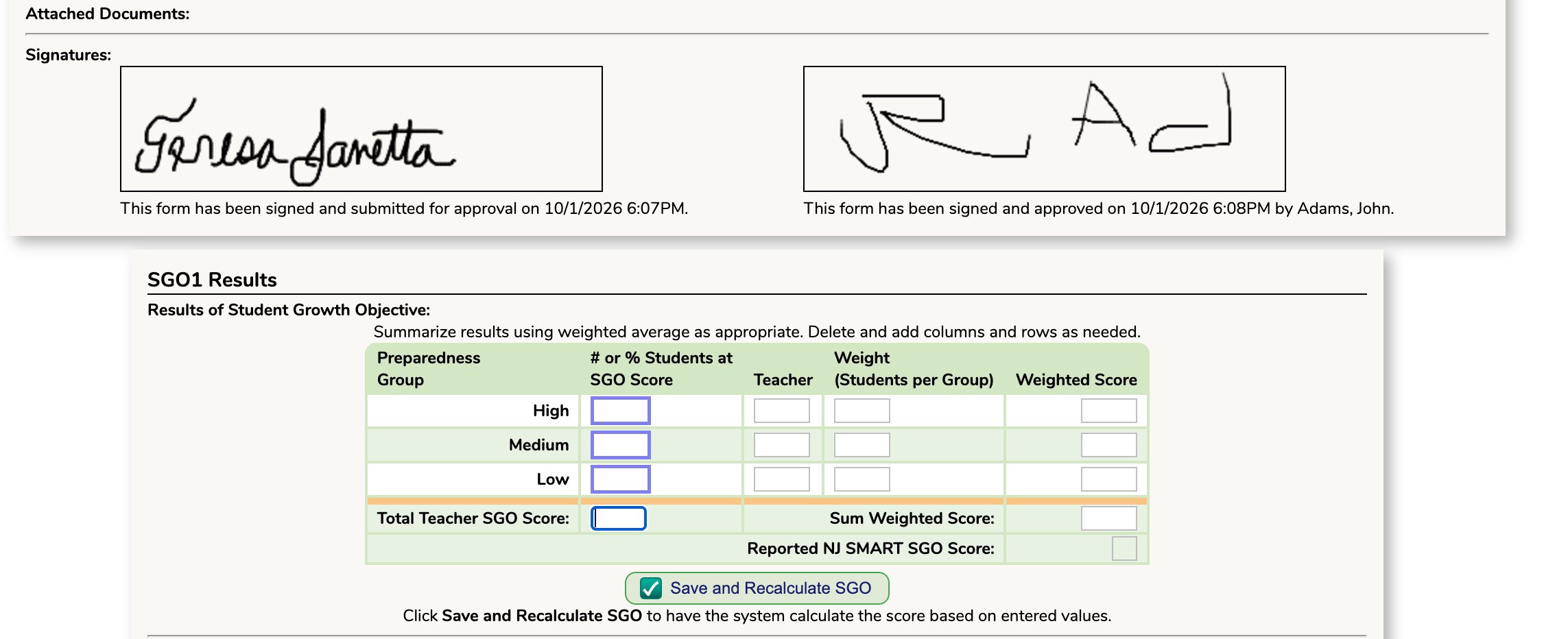
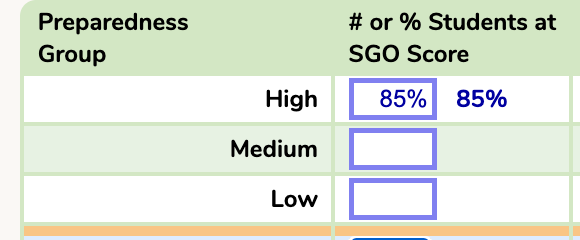
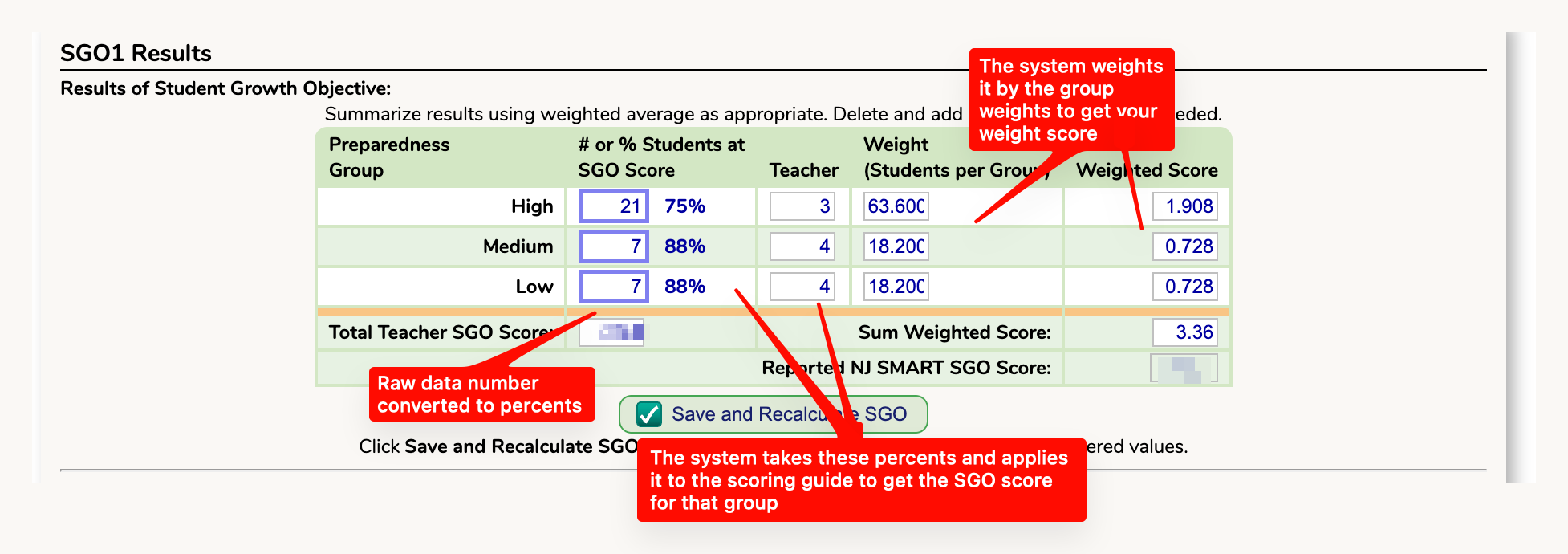
The first item you want to fill in is the " # or % Students at SGO Score". This represents the number or percent of students that met the target score. Genesis will take the data either way - either as a raw number of students and do the percent for you OR as a straight percent you enter.
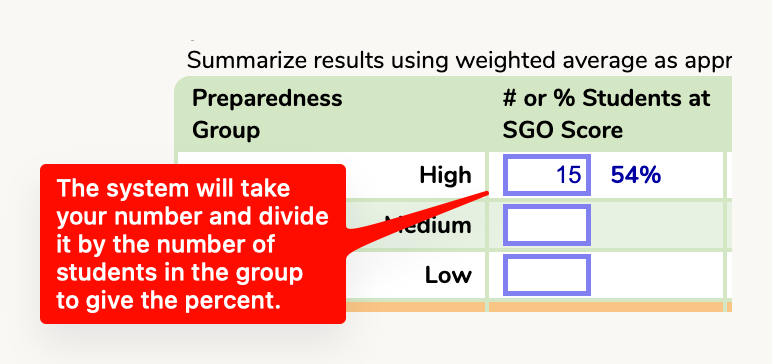
For example, if in your high group 10 students met the target score, you would enter a 10 in the scoring column. Alternatively, if you wanted to calculate the percent yourself and say 85% of the students met the target score, you can also enter that number.
Example with raw number hitting target (system calculates percent)
Example with percent of students hitting target (systems uses your percentage
Full Results View of Student Growth Objective
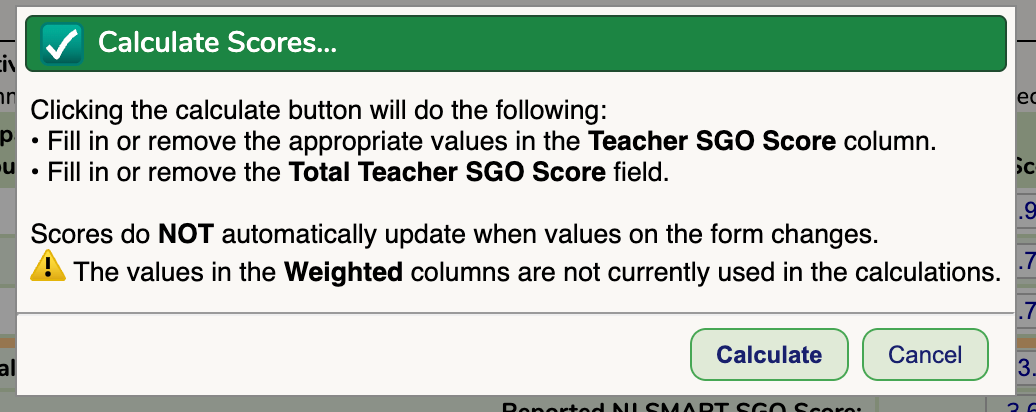
When you enter all data, an information pop up will appear. Read through the information and then click the "Calculate" button.
Important Note: While we display the weighted score and total above, our system is programmed to calculate the final score by combining all tiers into a single percentage of total students who met their goals rather than calculating separate tier scores first (added the total number of groups SGO scores and dividing by group count).
Once all scores have been entered, you will see the scoring plan highlight showing where the staff member has scored.

Final Submission, Notes & Documents
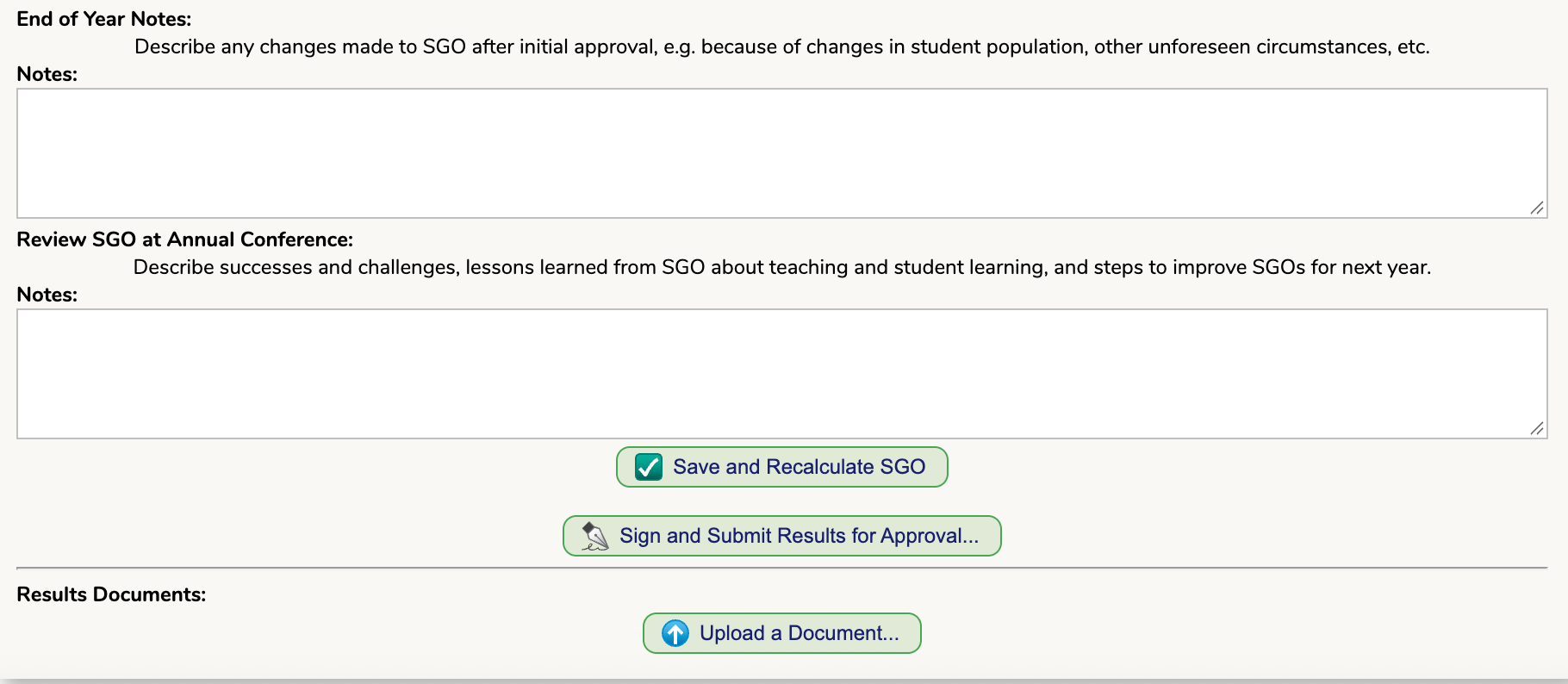
You can enter any additional notes to your SGO resullts section and upload documents.
For the final submission, click the "Sign and Submit Results for Approval" button at the bottom of the page.
Was this article helpful?
That’s Great!
Thank you for your feedback
Sorry! We couldn't be helpful
Thank you for your feedback
Feedback sent
We appreciate your effort and will try to fix the article