Overview of the Snapshot & Process
NOTE: This report is subject to changed based on changes from NJDOE
When selecting the "Create Snapshot" button the system will pull in all positions that are Contractual and have a Location field in the position code that have job codes 1000-3000, 3120 or 3105. The snapshot will always create a file as of the day it was ran. You can think of a snapshot like a photo being taken; even as data gets updated in the system as time goes on the photo (snapshot) will not change and remain the same.
If the district opts to not include 3120 and 3105 within the snapshot this can be managed on the Personnel - Setup - Jobs - Setup screen.
When you create the snapshot SchoolFi will classify all eligible positions into a type such as Position Type of 1,3,4 or 5.
1 = No Vacancies or Retirements: The job existed last year, still exists in current year, and its filled by a staff member.
3 = New Teaching Position: There exists Position Tracking record(s) for the selected school year on this Position, and no tracking records for any previous years.
4 = Eliminated/ Abolished Position: The district eliminated the position. This position has an Abolished Date that is within the selected school year. A position will not receive this 'type' unless there is an Abolished date that falls in this school year entered within the Position Code.
5 = Vacant Position: There are no Position Tracking records for the selected school year and therefore, it is deemed a vacant job that is required by the district.
Please note: The NJDOE only tracks data on position type 3-5, therefore our output will always exclude type 1. The only exception to this is if you have an entire school of type 1 positions. Then a singular record will be generated for that school as type 1. If your school has even one type 3-5 position classification, type 1 will not appear.
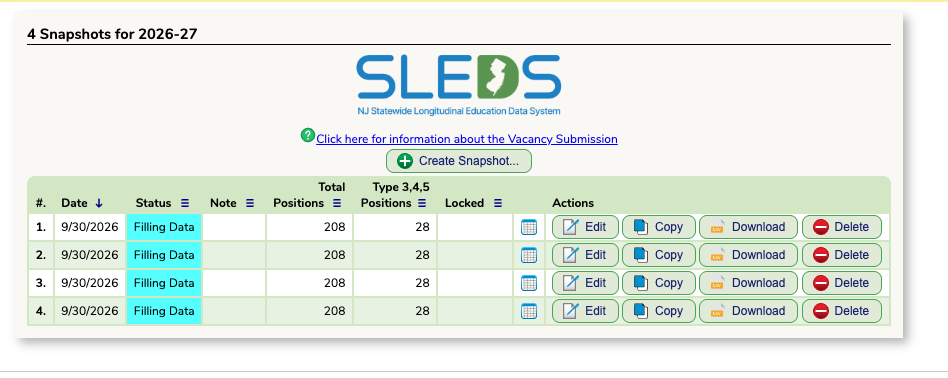
- Add a Note about the snapshot
- Download the submission file that you will then upload to the state
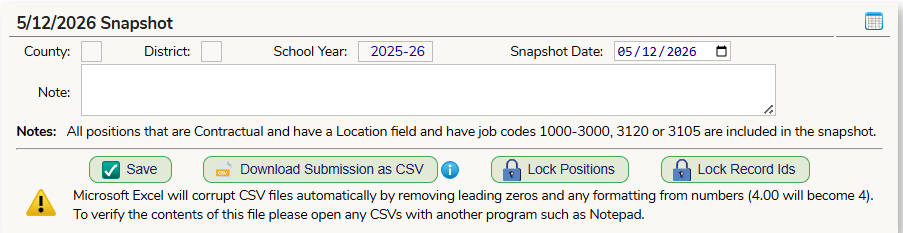 (The lock the positions and Lock Record ID's buttons will soon be retired based on updates to how SchoolFi stores NJDOE provided Record ID's)
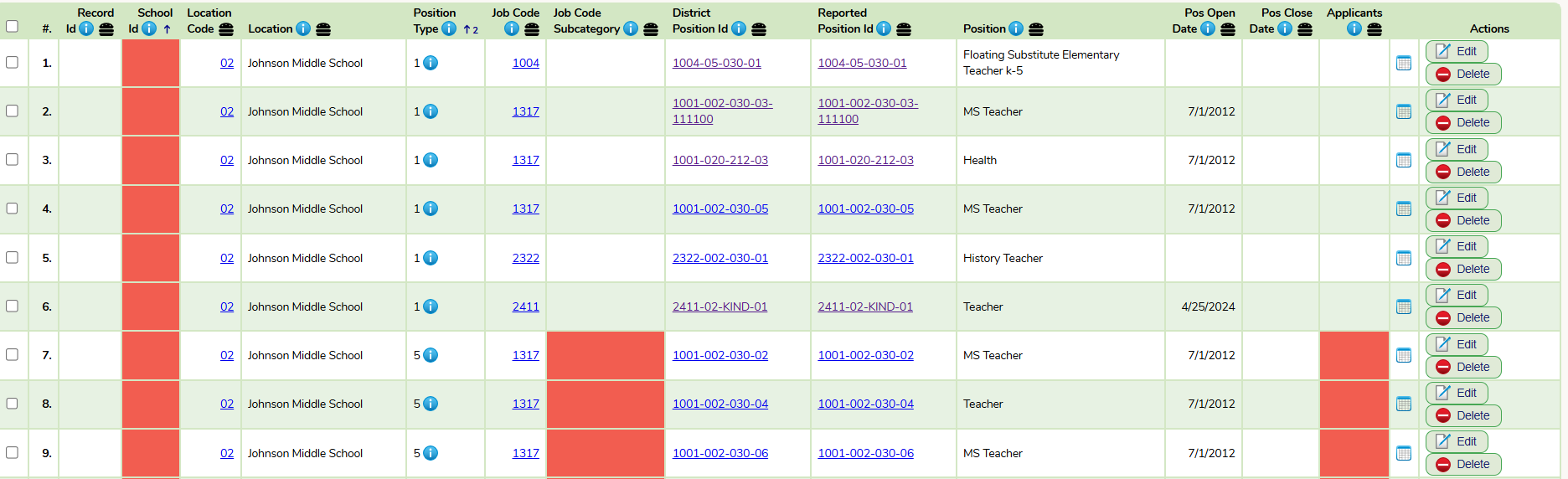
For any changes that need to be made, there are two options:
Strongly Recommended Method
Option 1. Update the main position code and create a new snapshot. Once the data is locked into the position record, it will carry through each snapshot you run. As you make changes to the positions, the snapshot will not show the updates until a new snapshot is created.
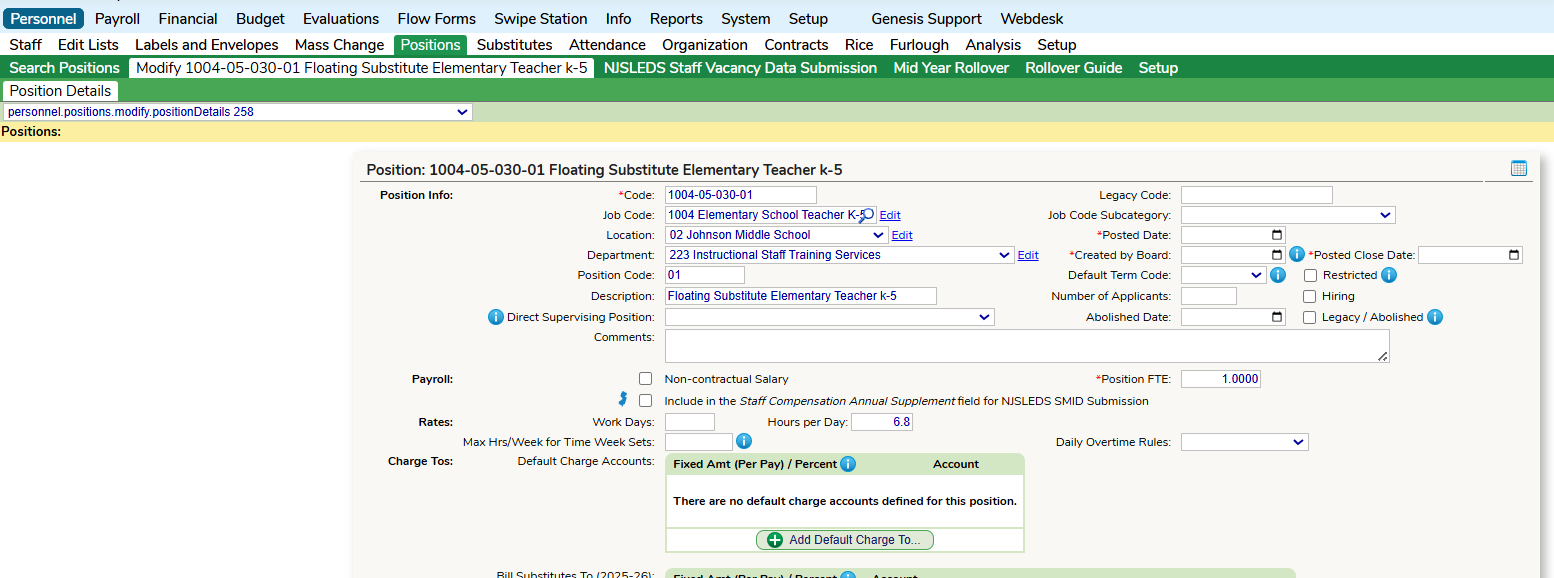
Editing the Snapshot Only - Only suggested to be used to address one off/edge case scenerio.
Option 2. Use the "Edit" button for the position within the snapshot. The Modify Position screen will allow you to override how the data will appear when downloading the CSV file for upload.
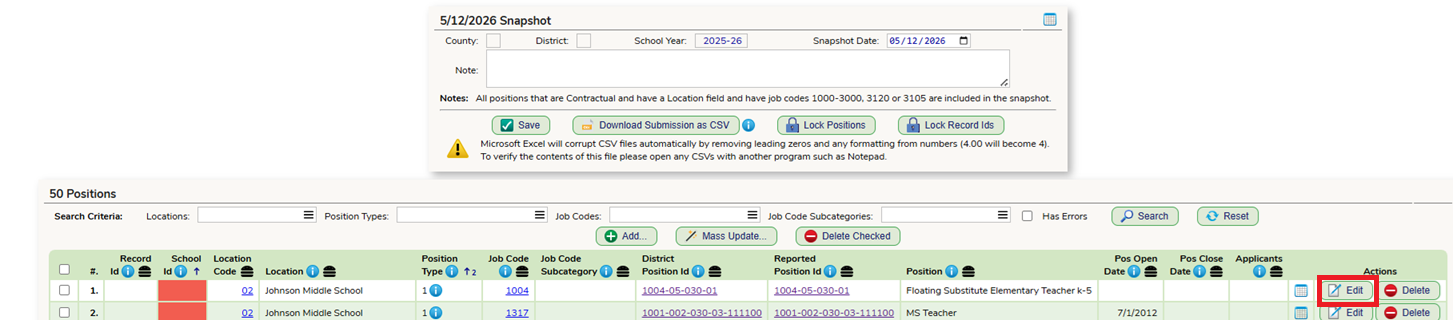
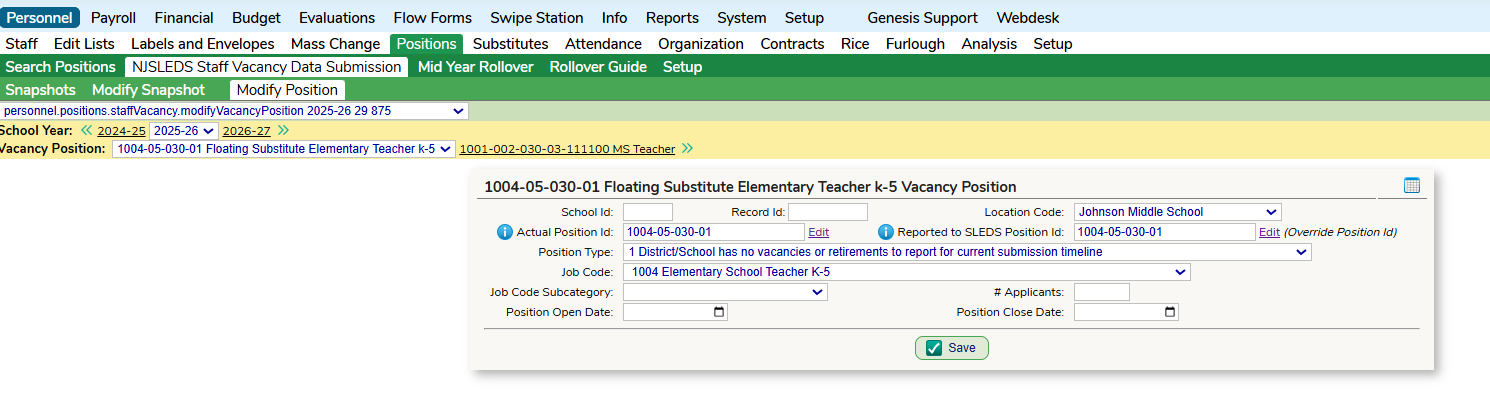
Please note - If you hit save and the data does not update, this is due to a local permission issue. Speak to the individual who coordinates SchoolFi security to give you full edit, create, add, delete and update access to the Staff Vacancy Submission fields.
Miscellaneous Tasks within the Snapshot
Adding a Missed Position
If for any reason the system missed a position, you can use the "Add" button will allow you to pull a position into the snapshot. Any added records (even locked) will not carry over to the next snapshot.
Mass Updating Records in the Snapshot
The "Mass Update" button will allow you to update the same field for multiple positions at a time. Just check the boxes for the positions you would like to update before selecting.
Removing a Position from the Snapshot
If you want to remove any listed positions from the snapshot, select "Delete"
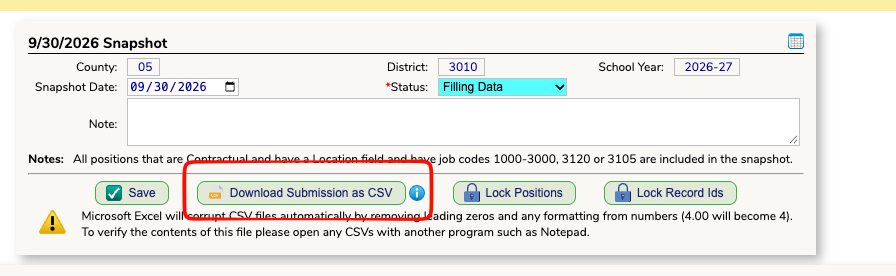
At the top of your submission will be a button called Download Submission as CSV. Click that button and it will generate a file that you can directly submit to the NJDOE SLEDS system. It is strong recommended that you do not open the file as it may corrupt the data.
VERY IMPORTANT ONCE YOU SUBMIT
Any time you upload, you must capture the record ID's NJDOE generates - otherwise you will create multiple entries for the same position each time you upload. Below are the instructions previously sent on how to locate them for download and import in Genesis.
- Log in to the NJSLEDS system via the standard myNJ site.
- Go to Submission Records and select Staff Vacancy.
- Click Snapshot Records to access prior data (if the button is unavailable, use current records).
- Click Export to generate the CSV file.
Where does the Data Come From?
Position Open Date
This is required for Position Types 3 or 5. This date is pre populated based on past tracking records. If there are no position tracking records in the prior year (new positions), it will use the Created by Board date. If there are tracking records, it will pull the first date the job become vacant.
Position Close Date
According to the state handbook, a Position Close Date is the "date a position closed". The NJDOE defines this as the date that it is no longer considered vacant. The date must be after the Position Open Date of that same school year. If not, the state will mark it as an error.
Abolishing a Position (Type 4)
To mark a position as type 4 (Eliminated), you will need to use the "Abolish Date" field. This is the only field that will control if a Position is assigned as a #4. This will pull into the Position Closed Date column on the snapshot. Data clean up trick: If the Abolish Date is in a previous school year. It will not be pulled into the report.
Applicants
Only mandatory for Position Types 3 or 5. This is managed in the "Number of Applicant" field on the Position Code.
External Hires
This is managed in the "External Hires" field on the Position Code. A one (1) represents an external hire for the position, a zero (0) represents no external hire.
Internal Hires
This is managed in the "Internal" field on the Position Code. A one (1) represents an internal hire for the position, a zero (0) represents no internal hire.

School ID
This is going to pull the last 3 digits of the CDS Code that is listed on the Locations field that is connected to the Position. To modify this can be done on the Personnel - Setup - Locations screen.
Location Code
The code used on the Personnel - Setup - Locations screen. This code may be different from the "School ID" column. This data is for informational purposes and will not being reported to the state.
Location
This field will pull the Location that is assigned to the Position Code. Locations are managed on the Personnel - Setup - Locations screen.
Job Code
The Job Code field is found on the Position as the Job Code value.
The Job Codes can be managed on the Personnel - Setup - Jobs screen. It is important to note that for this report it will be pulling the code that is on the "State Code" column. It is recommended that the Codes and the description match the State Code that is selected but the report is ultimately looking for the State Code that is connected to the Job Code found within the Position.
The State Code will appear in red if it is not a code that matches one of the valid SLED Codes that are outlined from the state. You will see the Code column highlighted in Yellow if it is a code that does not have a matching/valid State Code.
These State Codes can be found on the state website https://www.nj.gov/education/sleds/keydocs/ outlined under the "Job Codes and Subcategories List".
Job Code Subcategory
This is only mandatory for Position Types 3 - 5. This can be set within the Position Code.
District Position ID
It is recommended to keep accurate Position records. This report will be focusing on the Location and the Job Code. If those fields are not filled in on the Position Code they will not be reported.
If you do not want to update the main Position Record data for this report, please review the Reported Position ID section.
Reported Position ID
This column is intended for any manual overrides you may have. Using this field allows you to update how the state will be reported of that position ID. This can be useful if you do not want to change the main position code data. To manually override the Position ID, select the "Edit" button at the end of the row
Position
This is pulling in the the description of the Position Code.
Was this article helpful?
That’s Great!
Thank you for your feedback
Sorry! We couldn't be helpful
Thank you for your feedback
Feedback sent
We appreciate your effort and will try to fix the article