To create the Leave of Absence Request form you will need to Import the Web Form and PDF Form and then you will be able to put them together to create the Employee Form.
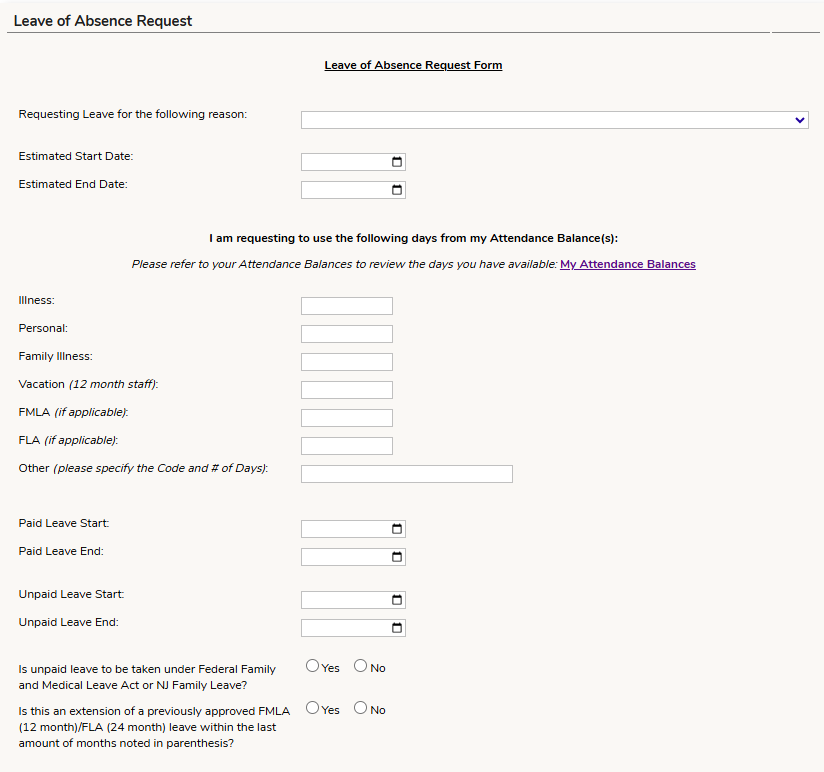
How the Web Form will look (when the staff are filling it out in their portal):

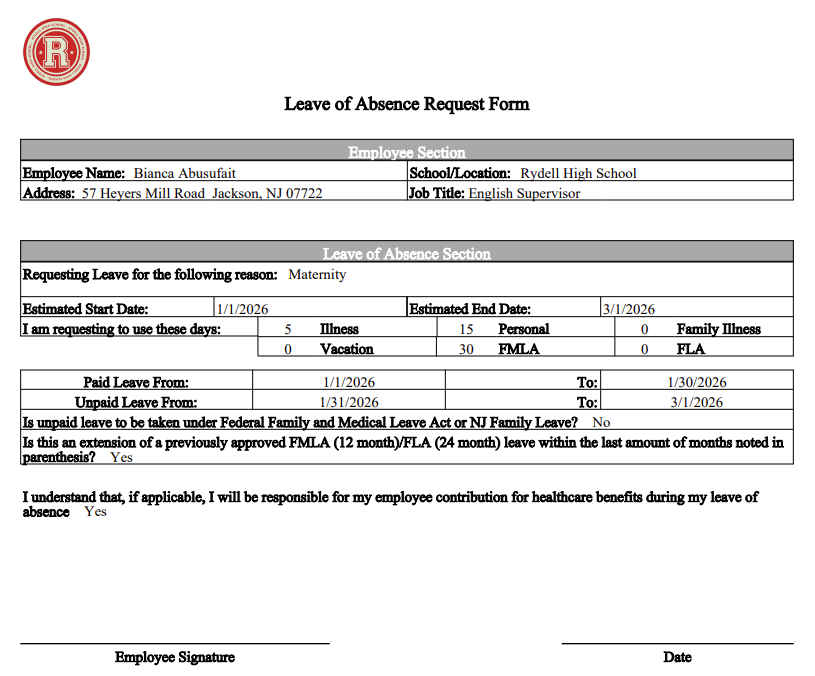
How the PDF form will look when completed:
Web Form
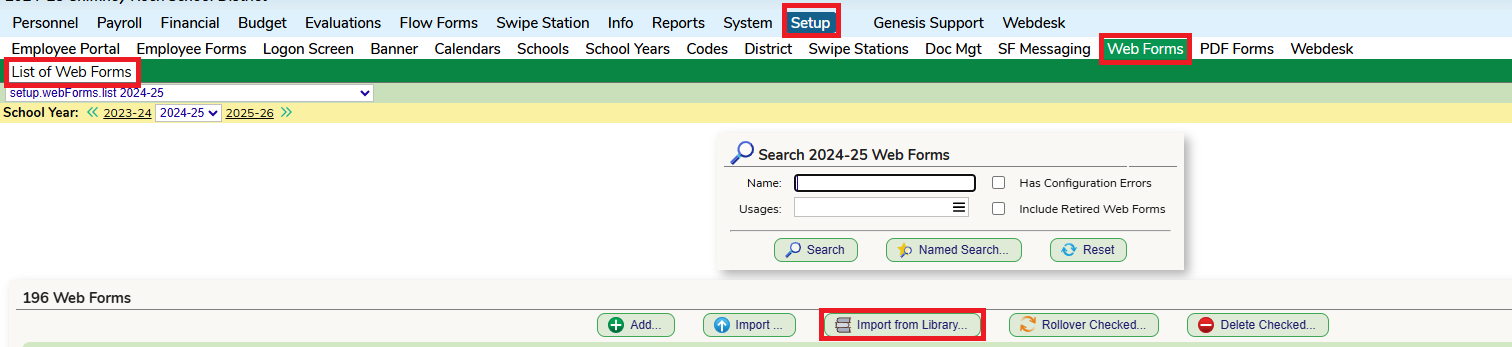
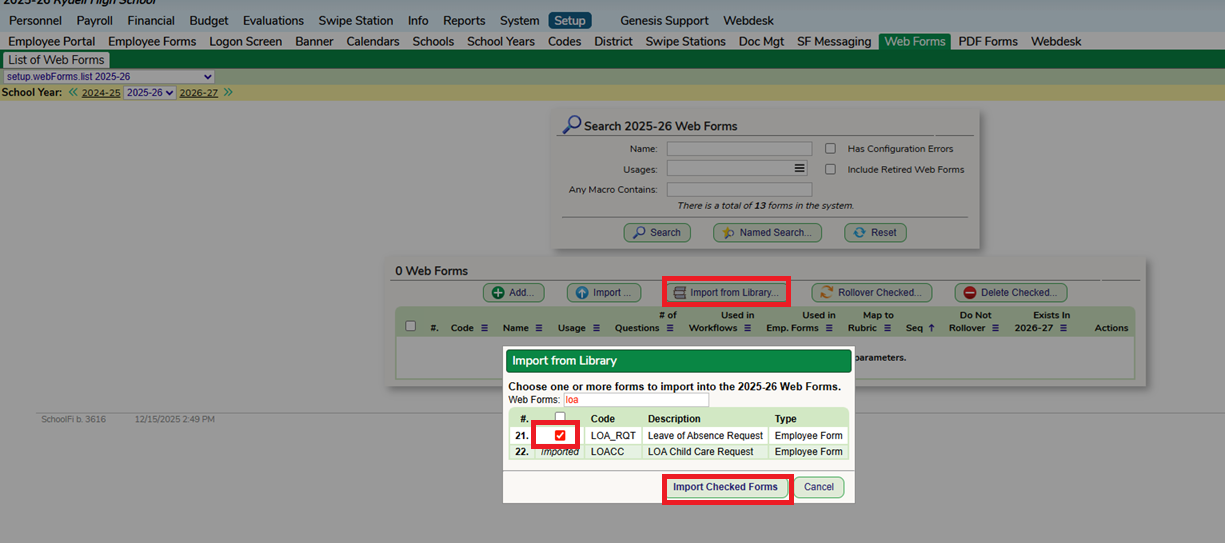
To import the Web Form, go to the Setup - Web Form - List of Web Forms screen. Select the "Import from Library" button and add the form.
You can click into the form to make any adjustments and view the preview.
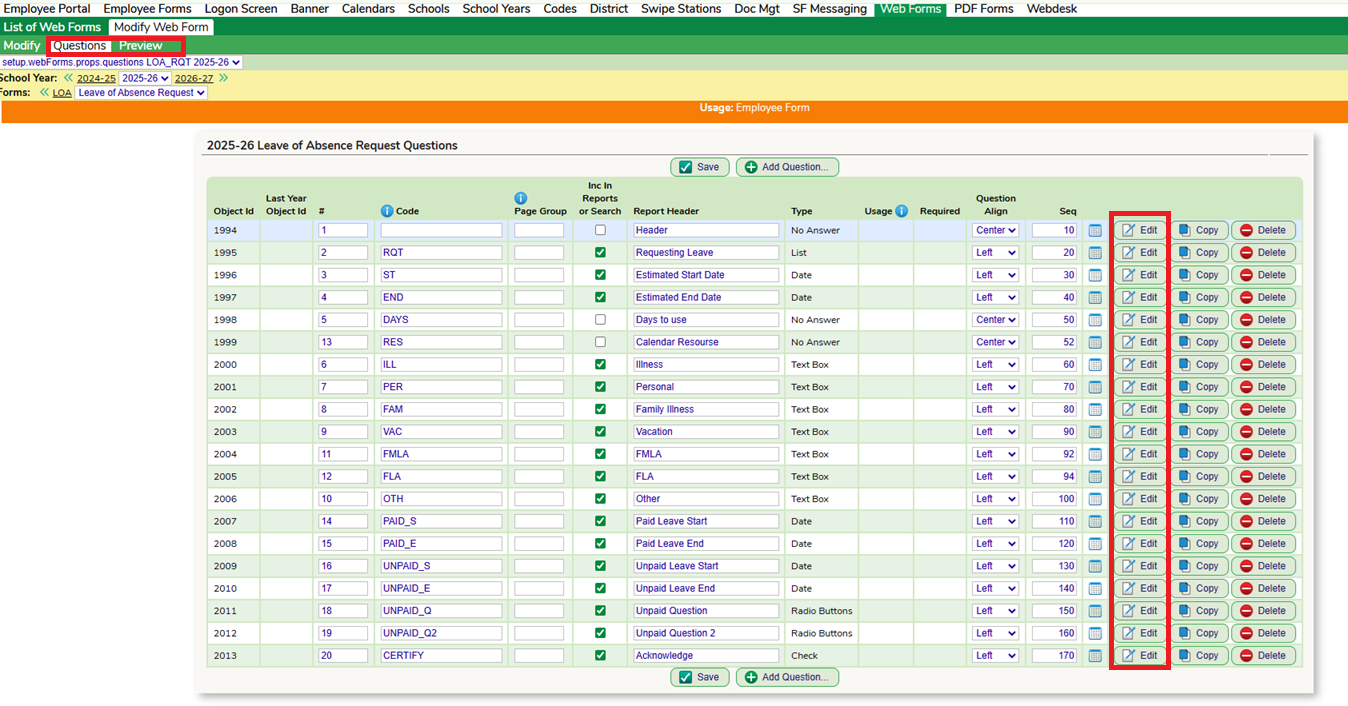
You will want to add in the URL to the Attendance - Balances screen so that the staff can click on the hyperlink and be brought to the appropriate screen within their portal to view their Attendance Balances. If your district does not have Attendance visible to the staff, you can remove/adjust this section from the form.
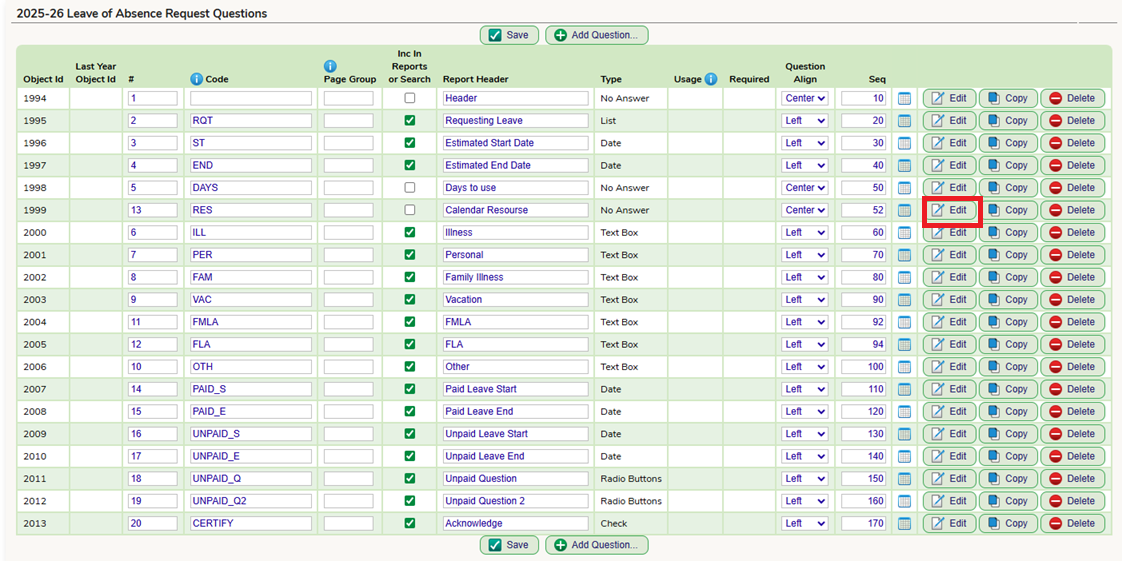
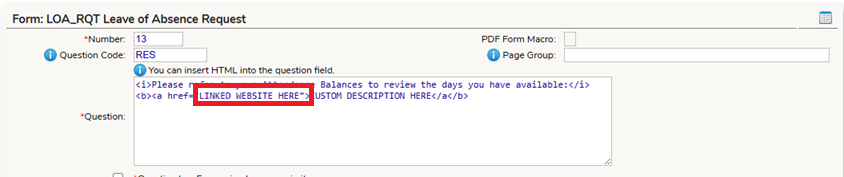
You can go into your own portal, copy the URL for the Attendance screen, then paste it in the "LINKED WEBSITE HERE" section on the Web Form.


You can then add in a custom description here.

PDF Form
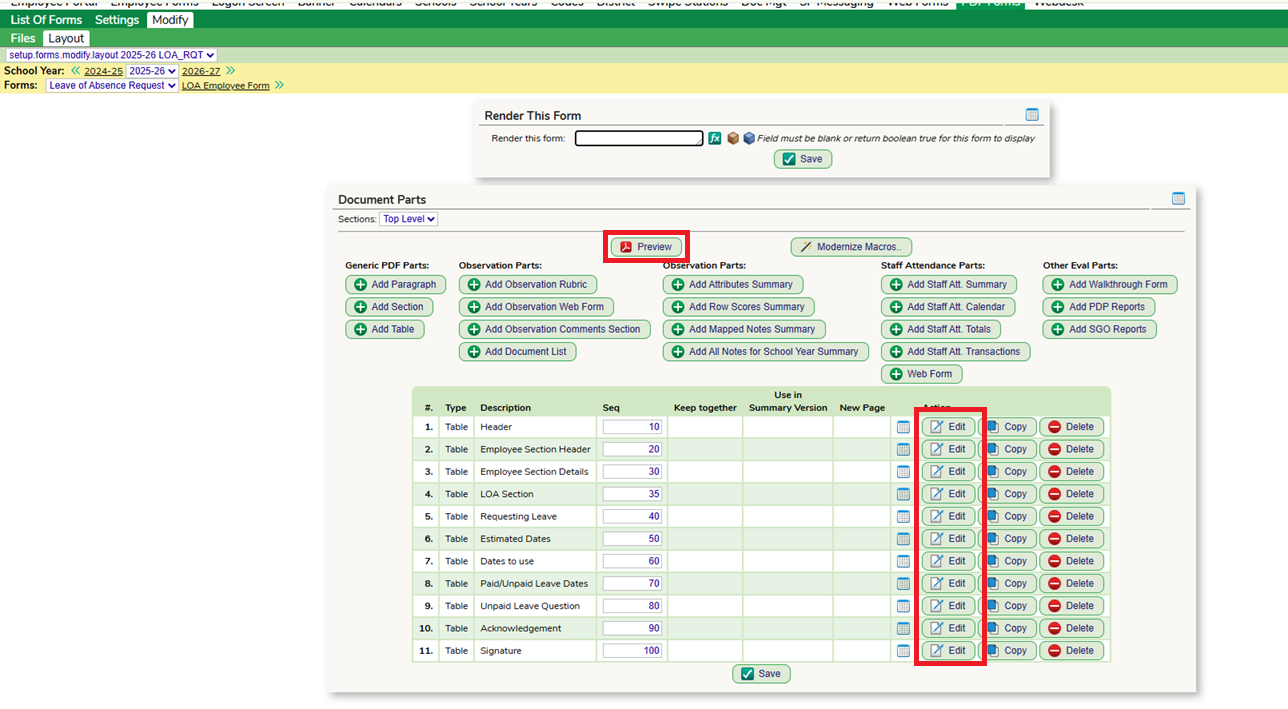
To import the PDF Form, go to the Setup - PDF Form - List of Forms screen. Select the "Import from Library" button and add the form.
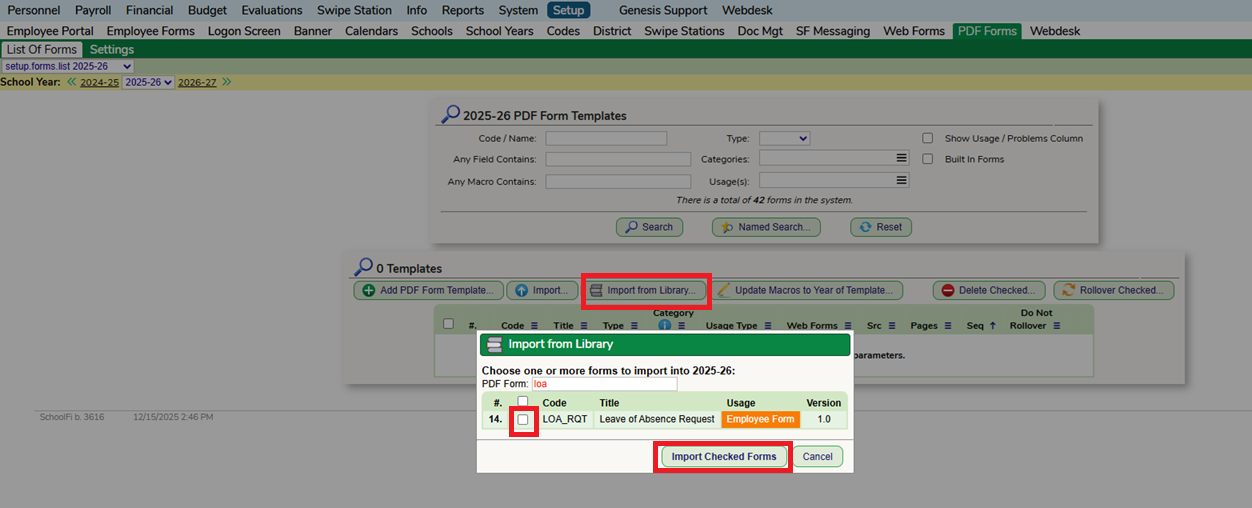
You can click into the form to make any adjustments and view the preview of the form.
Employee Form
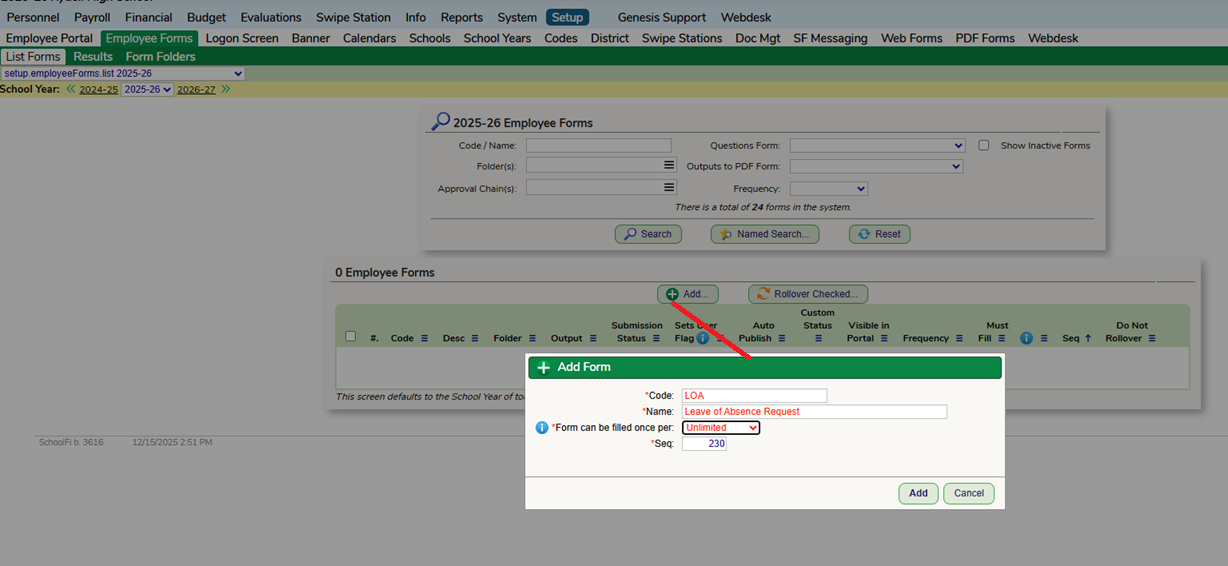
Go to the Setup - Employee Forms - List Forms screen and select "Add". Give the Form a Code, Name and select the Fill Frequency.
Add in the Imported Web and PDF Form
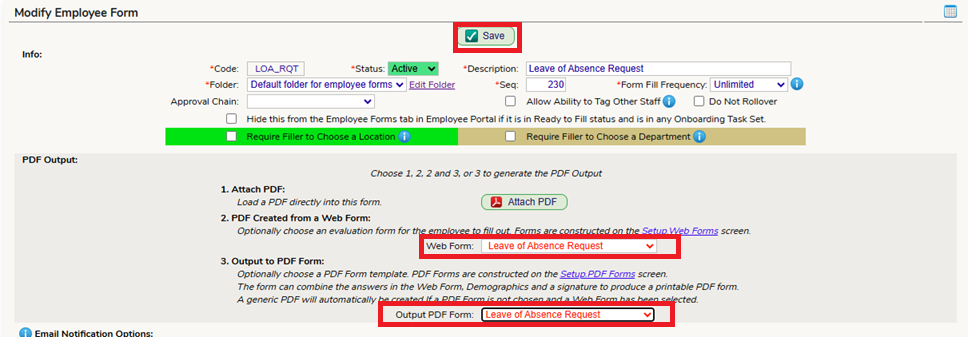
Go through the settings of the Employee Form to finish setting up the form: Employee Form Settings
Was this article helpful?
That’s Great!
Thank you for your feedback
Sorry! We couldn't be helpful
Thank you for your feedback
Feedback sent
We appreciate your effort and will try to fix the article